
Email setup and history
On the hosted version
There is nothing to set up. Email goes through our mail service, and the Email settings page is not shown to you.
Each company can send up to 50 emails in any 24 hours. Past that, you see "Daily email limit reached". Sharing a link on WhatsApp has no such limit.
On a self-hosted copy
Sending needs an SMTP mail server, from your email provider or a service such as Gmail. Settings → Email is available to admins.
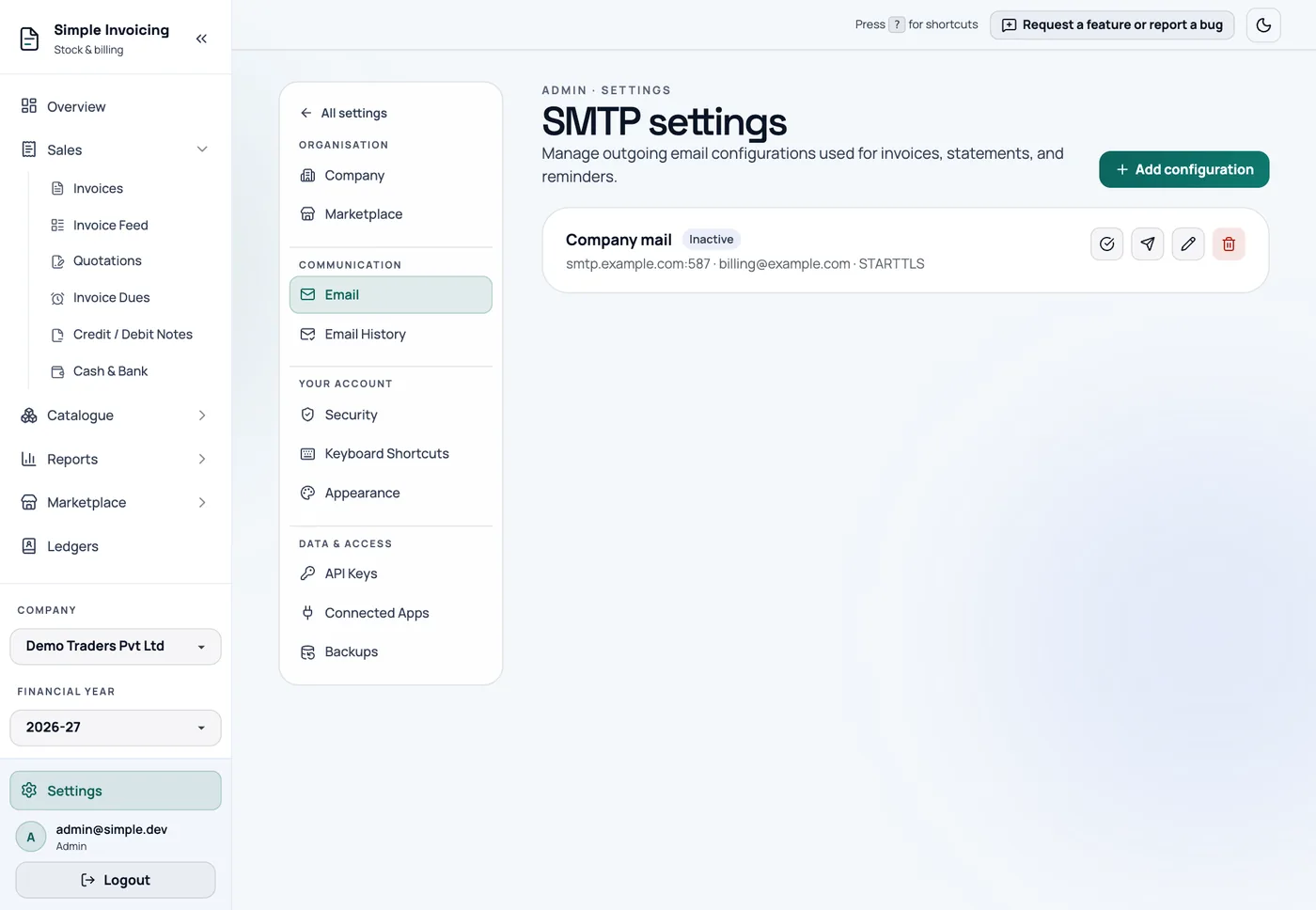
Click Add configuration.
Fill in every field:
Field Example Name Gmail production Host smtp.gmail.com Port 587 Username you@example.com. It must be an email address. Password Your SMTP password. Gmail needs an app password. From email, From name What your customers see. Leave Use TLS (STARTTLS) ticked for port 587. Port 465 uses SSL/TLS automatically.
Click Create.
Click Send a test email on the row and check that it arrives.
If you have more than one, click Set as active configuration on the one to use.
Only one configuration is active at a time, and it sends everything. If none is active, sending fails. You cannot delete the active one.
Email History
Settings → Email History logs all outgoing email for the company. Admins can see it.
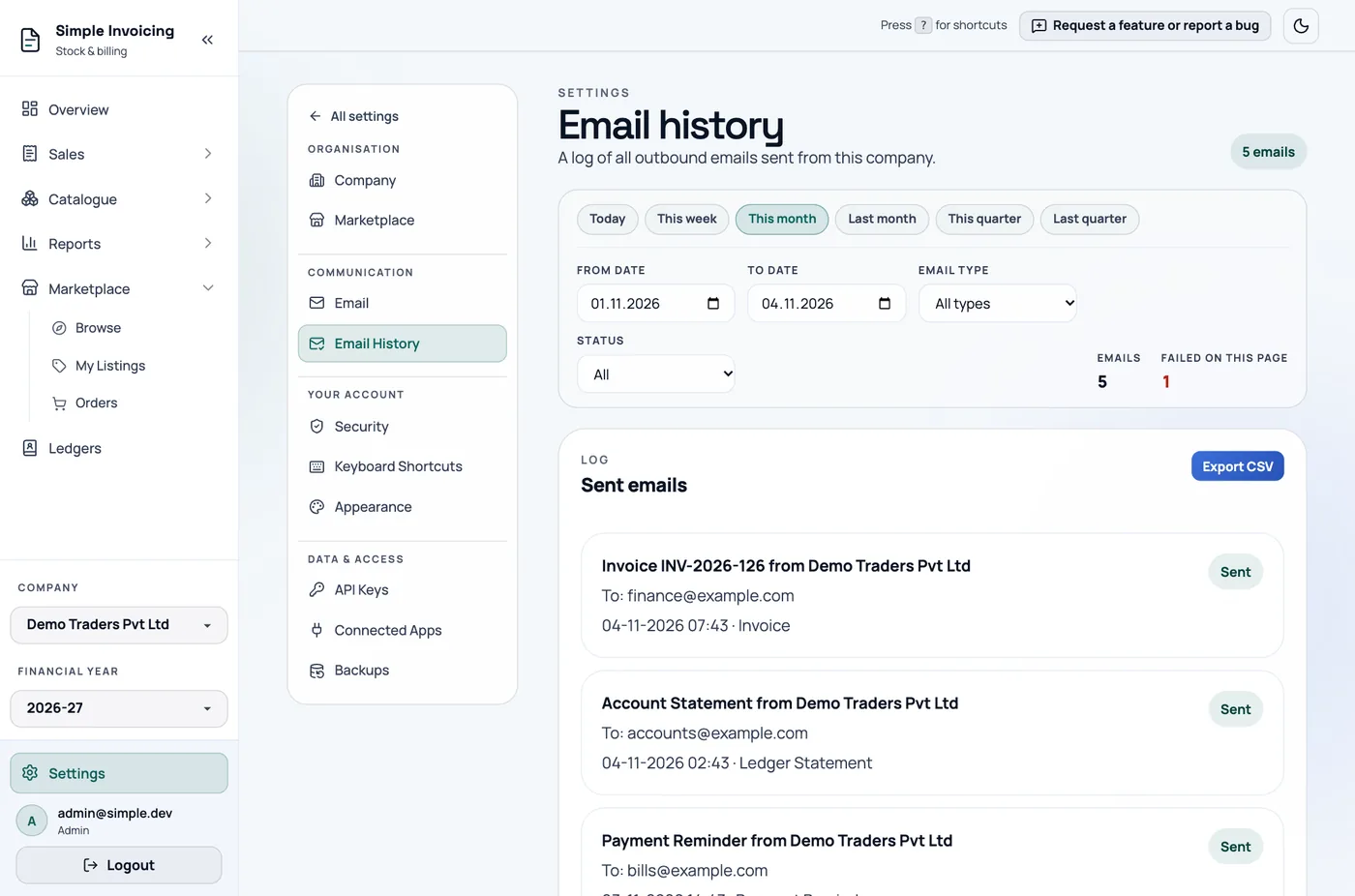
Filter by date, Email type (Invoice, Ledger Statement, Payment Reminder and others) and Status (Sent or Failed). Click a failed row to see the error. Export CSV downloads the current page.
The page shows this month by default, so widen the dates if you are looking for an older email.