
Invoices
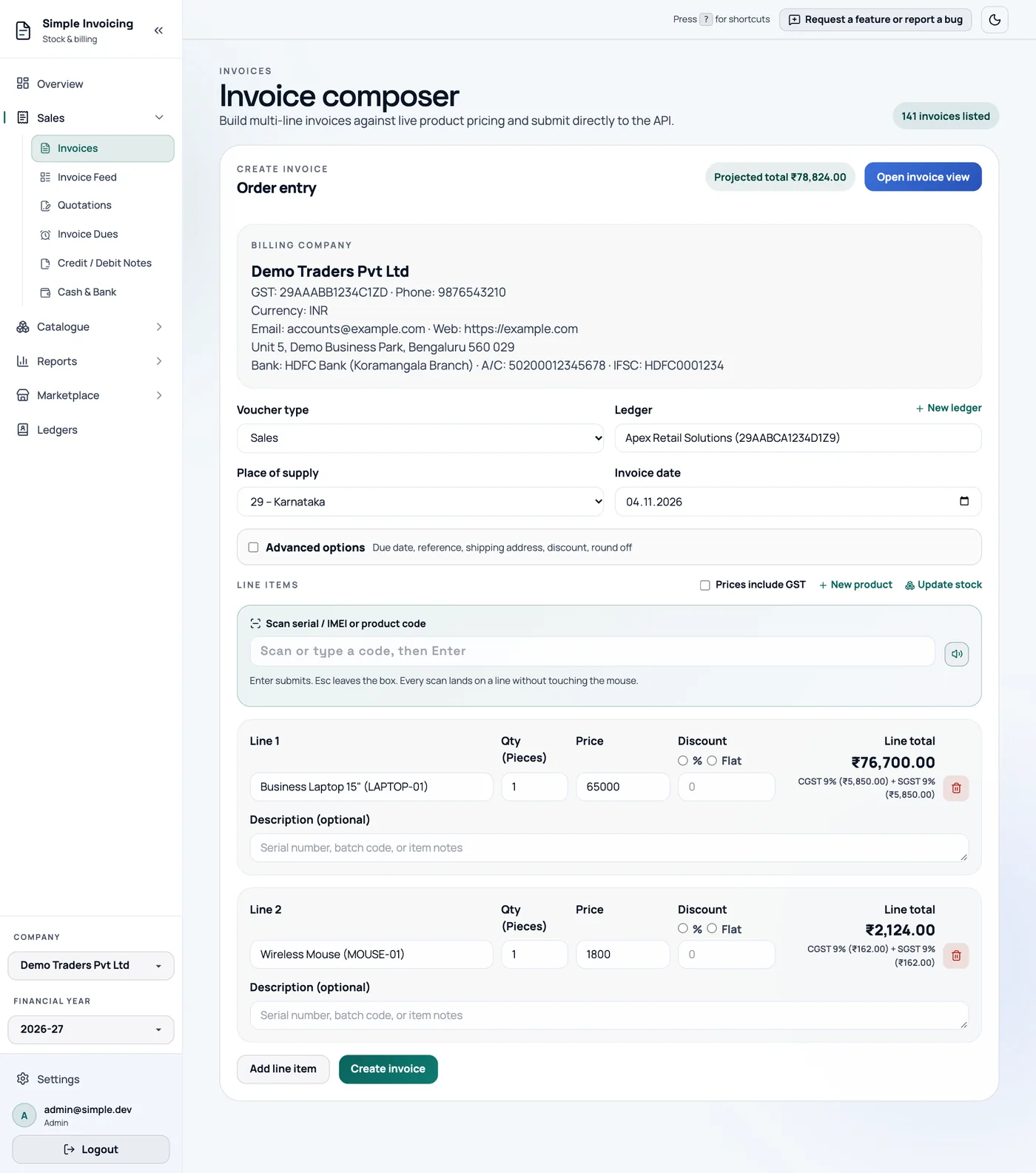
Sales → Invoices is where you create sales invoices and purchase bills. It is a form, not a list. To see invoices you have already made, use the Invoice Feed.
Everyone, including staff, can create, edit and cancel invoices.
Create an invoice
Choose the Voucher type:
Type Use it for Stock Default number Sales An invoice to a customer Goes down INV-2026-001Purchase A bill from a supplier Goes up PINV-2026-001Quotation, Proforma invoice An offer No change QT-…,PI-…Payment, Receipt Money in or out No change PAY-…Choose the Ledger. Type to search, or click New ledger to add one on the spot. The first ledger is already selected when the page loads, so check it.
Check the Place of supply (sales only). See below.
Check the Invoice date. It defaults to today.
Add your products. For each line, choose the product and enter Qty. The price and tax come from the product.
Click Create invoice.
The invoice number is assigned when you save, and the preview opens so you can send it.
A sale is refused with "Insufficient inventory" if you do not have enough stock. Either correct the stock or record the purchase first.
Line options
- Price: leave blank to use the product's price, or type another for this invoice.
- Discount: choose % or Flat, then enter a value. The discount is ignored unless one of them is selected.
- Description (optional): extra detail for this line.
- Add line item adds another line, and the bin icon removes one.
The Prices include GST checkbox changes what you type to the amount including tax. The app works backwards to the taxable value.
The GST rate and HSN come from the product and cannot be changed on the line. To change them, edit the product.
New product and Update stock above the lines let you fix things without leaving the invoice.
Advanced options
Tick Advanced options to see these extra fields. The app remembers whether it is open.
| Option | Notes |
|---|---|
| Due date | No due date, Choose exact date, or Set days from invoice date. |
| Supplier Invoice # | Purchases. The number on the supplier's bill, which you can search for later. |
| Reference Notes | A PO number or customer reference. |
| Shipping address same as billing address | Untick to choose a saved address or enter a new one, which is saved to the ledger. |
| Apply round off | Rounds the final total to the nearest rupee. |
| Invoice discount | Taken off the grand total, as % or Flat. |
"No due date" still gives a due date
Choosing No due date saves the invoice date as the due date. An unpaid invoice then shows as overdue from the next day. If you give credit, use Set days from invoice date, for example 30 days.
Your browser remembers these for the next invoice: Prices include GST, Apply round off, your due-date choice and days, and the discount type.
How GST is split
For a sale by a company with a GSTIN, the app compares the Place of supply with your own state, from the first two digits of your GSTIN:
- Same state: CGST + SGST, each at half the rate.
- Different state: IGST at the full rate.
The place of supply defaults as follows:
| Customer | Default |
|---|---|
| Has a GSTIN | The state in their GSTIN. |
| No GSTIN | Your own state, so CGST + SGST. If you are shipping to another state, choose it yourself. |
| GSTIN starts with a non-state code such as 99 | Nothing. Choose a state. |
Changing the ledger resets the place of supply. On older invoices, a warning appears if the customer's state has since changed.
For purchases, and for companies without a GSTIN, the app compares the two GSTINs. If either is missing, it uses CGST + SGST.
How totals are worked out
- Without "Prices include GST": taxable value = price × quantity, and tax is added on top.
- With "Prices include GST": price × quantity is the total, and the tax is worked out from it.
- Line discounts come off the taxable value, and tax is calculated on what remains.
- Invoice discount comes off the grand total. The tax breakup is not reduced, so check with your accountant if you use this on GST invoices.
- Round off is applied last.
Record a purchase
Choose Purchase as the voucher type and your supplier as the ledger. Enter what you paid as the price. Under Advanced options, add the Supplier Invoice #. Saving adds the stock.
PDFs print as Tax Invoice when the customer has a GSTIN, Sales Invoice when they do not, and Purchase Invoice for purchases.
Edit, cancel, restore or duplicate
All of these are on the invoice's card in the Invoice Feed.
Edit (pencil)
The number and financial year stay the same, and stock is adjusted by the difference only. You can edit a paid invoice.
You cannot move an invoice into a different financial year. To do that, cancel it and create a new one.
Cancel (bin)
Cancelling reverses the stock. The invoice keeps its number and stays on record, but drops out of dues, totals and shared links. Only cancel when you mean to withdraw the invoice. If it has already been reported on a return, a credit note is usually correct instead. Check with your accountant.
Cancelling a purchase is refused if any of its serials have been sold.
Restore
Tick Show cancelled under Filters to see cancelled invoices, then click Restore. This takes the stock out again, so it can fail if you are now short.
Duplicate
This opens the form with everything copied: new date, new number, and no serials, so scan them again. Nothing is saved until you click Create invoice.
Create an invoice from a ledger
On a ledger's page, open the arrow on Record Receipt / Payment and choose Create Invoice. This shorter form has the ledger filled in, without discounts, round off or shipping.
Keyboard use
Tab moves through the fields. In the Ledger and Product boxes, type to filter, use the arrow keys to move, Enter to pick and Esc to close. Alt+S jumps to the scan box when you have serial-tracked products.