
Settings
Click Settings at the bottom of the sidebar. You only see the items your role allows.
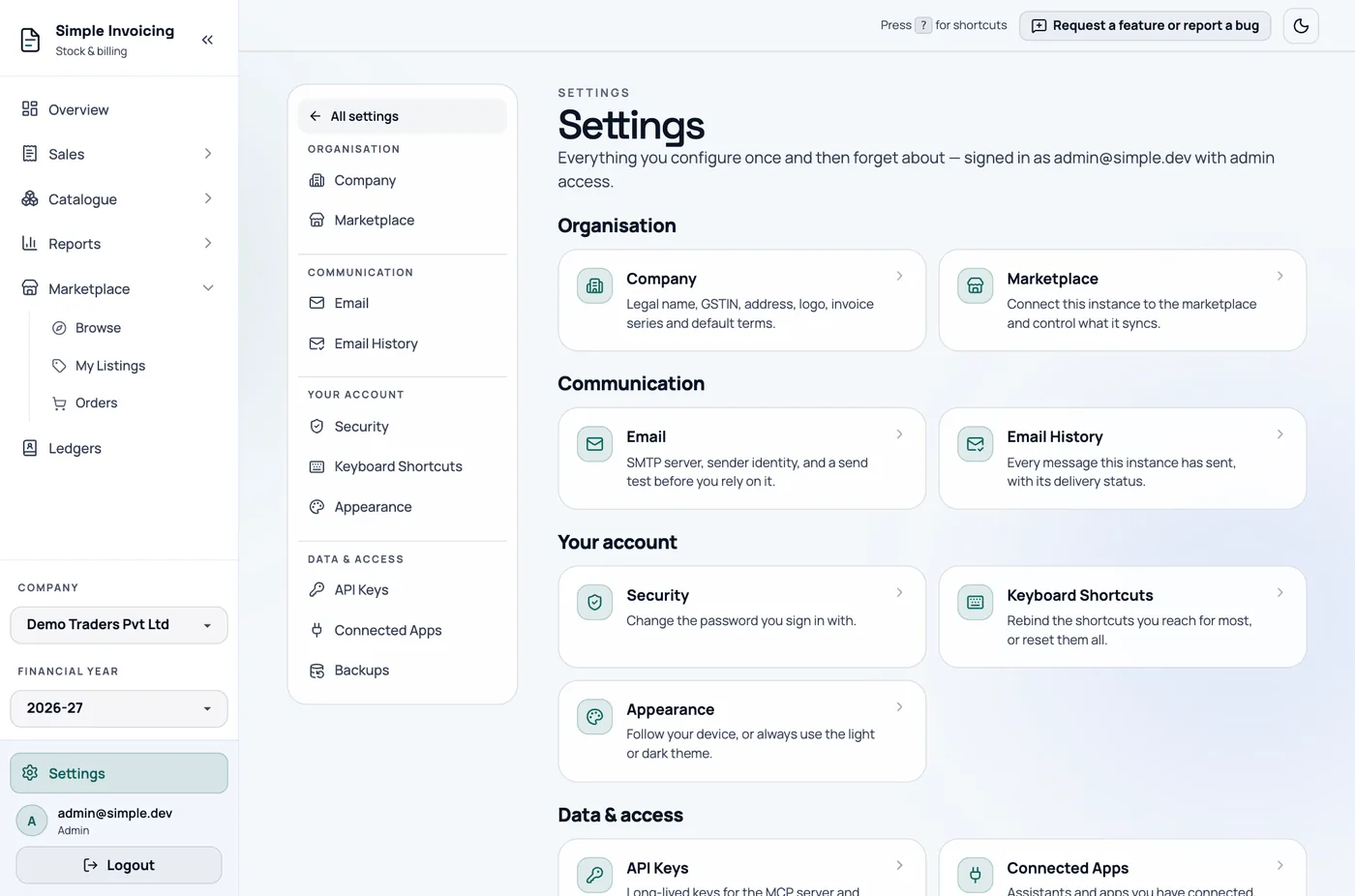
| Item | Who sees it | Covers |
|---|---|---|
| Company | Everyone | Company details, logo, terms, e-way bills and invoice series. |
| Marketplace | Admins | Connect to a marketplace and set how orders are handled. |
| Administrators of a self-hosted copy | The mail server used for sending. | |
| Email History | Admins | Every email sent, with its status. |
| Security | Everyone | Your password. |
| Keyboard Shortcuts | Everyone | Change the keys. |
| Appearance | Everyone | Light or dark theme. |
| API Keys | Admins | Keys for integrations. |
| Connected Apps | Everyone | AI assistants you have connected. |
| Backups | Administrators of a self-hosted copy | Create and restore backups. |
Security
Settings → Security changes your password.
- Enter your Current password, then the New password twice.
- Click Update password.
The new password needs at least 8 characters. The other items on the checklist are advice, so a longer passphrase is a good option. Changing your password signs you out on other devices but keeps you signed in on this one.
If you signed up with Google, you have no password yet. This page offers Set a password so you can also sign in with email.
Forgot your password?
Click Forgot password? on the sign-in page and enter your email. If an account exists, you get a link that works once and lasts an hour. Using it signs you out everywhere else.
On a self-hosted copy, this needs a server mail setup. Without one, the link is not shown, so ask your administrator.
Keyboard Shortcuts
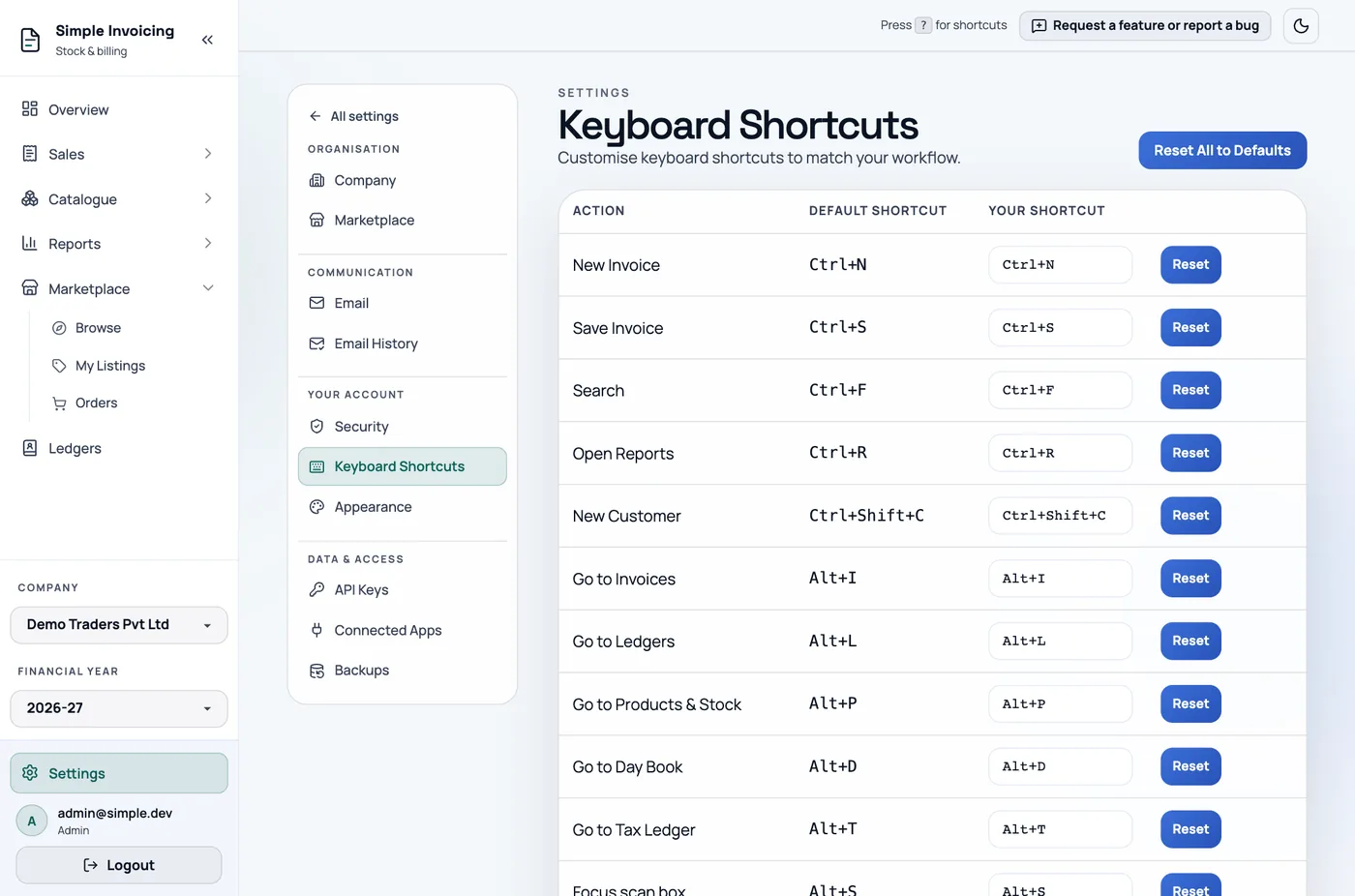
Settings → Keyboard Shortcuts lists each action with its default and your current key. See which shortcuts work.
- Click the box under Your Shortcut. It shows "Press keys…".
- Press the new combination, or press Esc to cancel.
- Click Save.
If the combination is already in use, you see which action owns it. Reset restores one shortcut, and Reset All to Defaults restores all of them. Shortcuts are saved to your account, so they follow you.
Appearance
Settings → Appearance offers System, which follows your device, Light and Dark. The choice is saved only in this browser. The round button in the top bar switches between light and dark.