
Marketplace
The Marketplace lets businesses running Simple Invoicing trade surplus stock with each other. It is optional, and everything else works without it.
- No money passes through it. It matches orders. You and the other business settle payment and delivery directly.
- Sellers are not verified. Every counterparty shows an Unverified badge because GSTINs are self-declared. Check who you are dealing with before you ship or pay.
Who can do what
| Action | Who |
|---|---|
| Browse listings and view orders | Anyone signed in |
| Publish listings, place and handle orders | Admins and managers |
| Connect and change settings | Admins |
Connect your company
Your company needs a valid GSTIN on its profile, and you need the address of a marketplace.
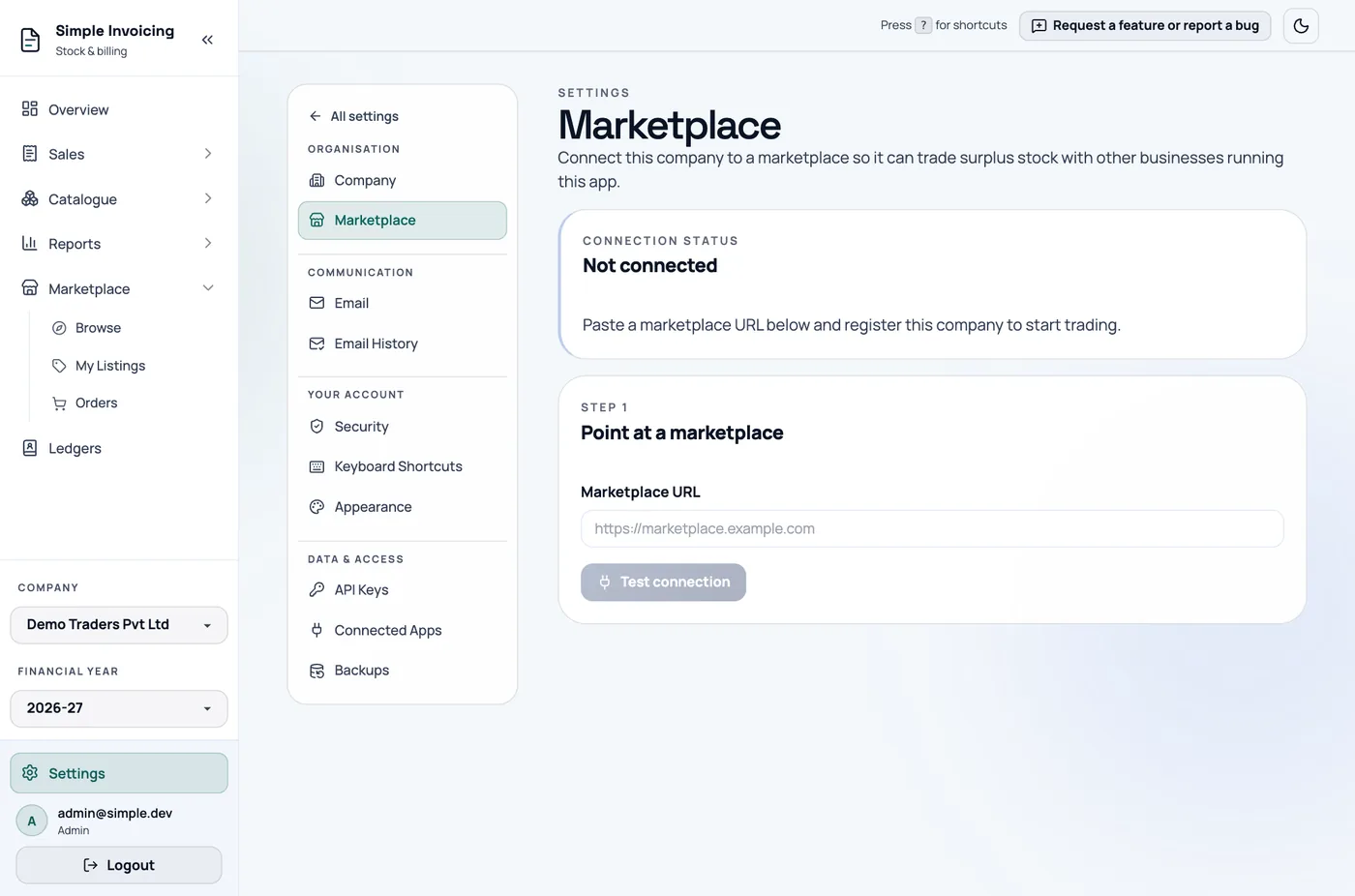
- Go to Settings → Marketplace.
- Enter the Marketplace URL and click Test connection. You see its name, whether new sellers need approval, how long unanswered orders last, and a link to its terms.
- Check the Legal name and GSTIN, which come from your company profile, and enter a Contact email.
- Click Register with this marketplace.
If the status shows Awaiting operator approval, wait. Do not register again, because the app notices the approval on its next sync. A GSTIN can only be claimed once.
Choose how orders are handled
| Setting | Default | What it does |
|---|---|---|
| Accept incoming orders automatically | On | Accepts when stock is available and rejects when it is not. |
| Auto-accept only below | No cap | Orders above this total wait for you to accept them. |
| Post invoices automatically | Off | A confirmed order creates the sales invoice and reduces stock for the seller, and creates the purchase invoice and adds stock for the buyer, without review. |
Orders only arrive when the app syncs, which happens every 60 seconds while it is open. If nobody has the app open, your provider or administrator can schedule a regular sync.
Sell: publish a listing
From Marketplace → My Listings, click Publish a product. Or click the store icon on a row in Products & Stock.
- Choose the Product. Its GST rate, HSN and unit come from the product.
- Enter the Asking price, either Excluding GST or Including GST. The marketplace stores the price without tax, and the preview shows what the buyer pays.
- Enter Quantity to advertise, and optional minimum and maximum order quantities.
- Check the Listing title, add a Description, and click Publish listing.
The advertised quantity is only a snapshot. Your own stock is what counts when an order is accepted.
Each product can have one listing. On My Listings you can Edit, Pause, Resume or Withdraw it.
Withdrawing is final
A withdrawn product cannot be published again. Use Pause if you may want to list it later. Orders already placed are not affected.
Buy: place an order
- Go to Marketplace → Browse. Search, or use Filters for HSN, price, seller state and in-stock items. Prices are per unit and exclude tax.
- Click Buy now.
- Enter the quantity. The summary shows the taxable value, GST and Total payable.
- Click Place order.
The order stays pending until the seller accepts it. Track it under Orders.
Handle orders
Marketplace → Orders has Selling and Buying tabs.
| State | Meaning |
|---|---|
| pending | Waiting for the seller. |
| accepted | The seller accepted. Invoices come next. |
| posted | The invoice has been created. |
| rejected, cancelled, expired | The order ended with no invoice. |
As a seller, click Accept on a pending order, which checks your real stock, or Reject with a reason. As a buyer, click Cancel while it is pending.
The seller's sales invoice is created first, then the buyer's purchase invoice, along with any ledger or product the buyer needs. Once posted, the Invoice button opens it.
If posting fails, a Posting failed chip shows the reason. Fix the cause, such as a missing financial year, then click Retry posting. Automatic attempts stop after five.
Get paid
Marketplace orders do not record payment. Record it as a normal receipt or payment against the invoice.
Disconnect
Settings → Marketplace → Disconnect withdraws all your listings and cancels your open orders. Invoices already posted stay in your books. To return, you must register again.
Rotate credential replaces your connection key. The old key stops working within the hour.