
Credit and debit notes
Use a credit note to correct an invoice after it has been issued, for a return or a discount.
| Voucher | Use it when | Number |
|---|---|---|
| Sales — credit note we issue | You give a customer credit. | CN-… |
| Purchase — credit note from a supplier | A supplier gives you credit. It is recorded as a debit note on your side. | DN-… |
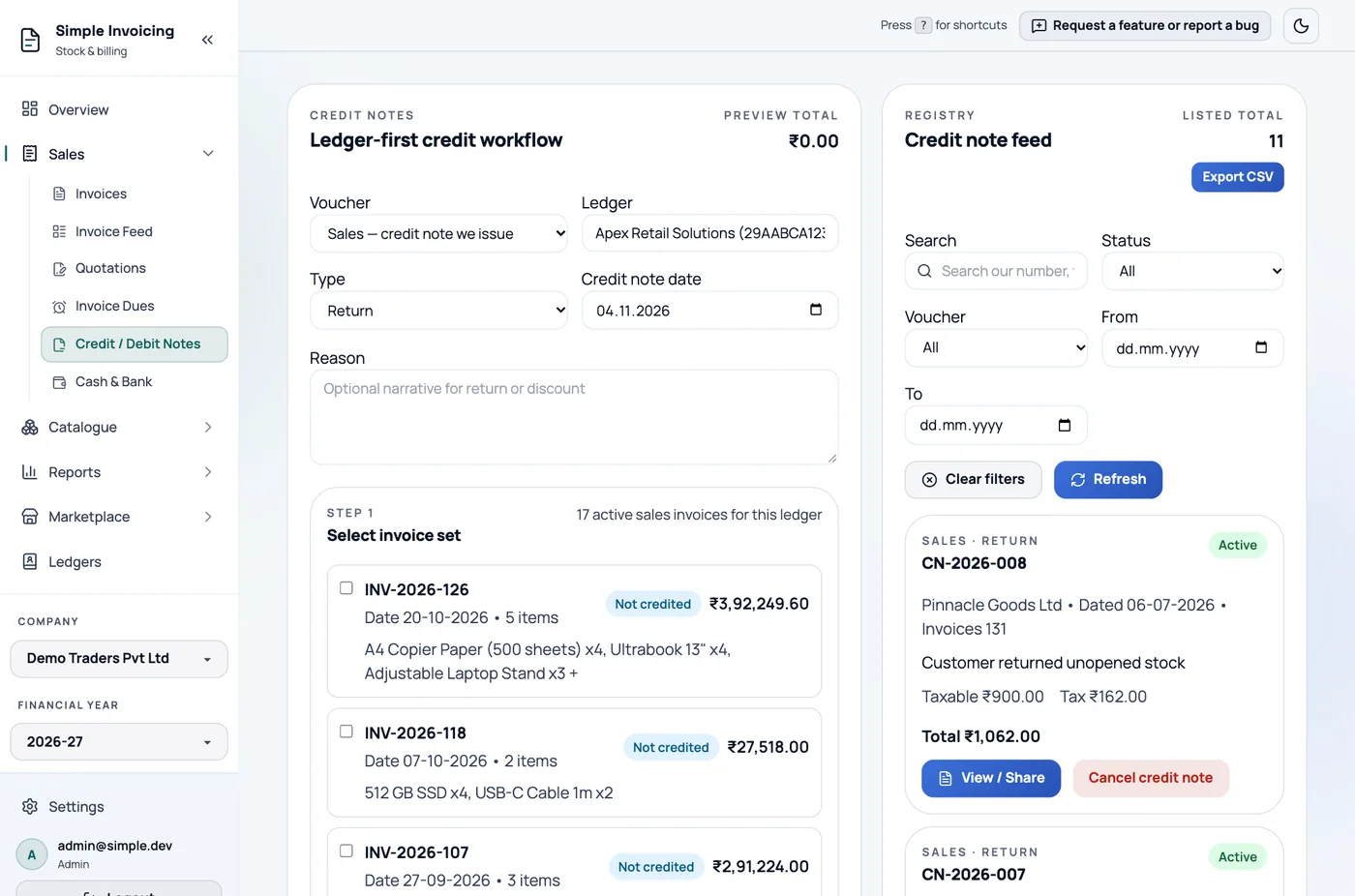
Issue a credit note
- Go to Sales → Credit / Debit Notes, or open Create Credit Note from a ledger.
- Choose the Voucher and Ledger.
- Choose the Type:
- Return: goods came back. Stock is restored.
- Discount: a price reduction after the sale. Stock does not change.
- Check the Credit note date, which cannot be in the future or before the invoice's date.
- For a supplier's note, enter the Supplier credit note # and Supplier credit note date so it can be matched with GSTR-2B.
- Enter a Reason if you like.
- Under Select invoice set, tick one or more invoices.
- Enter the amounts:
- Return: Credit qty for each line.
- Discount: Discount (incl tax) for each line. The app splits it into taxable value and tax.
- Click Create Credit Note or Record Supplier Credit Note.
Tax is reversed in the same CGST, SGST and IGST split as the original invoice.
What it changes
| Credit note you issue | Note from a supplier | |
|---|---|---|
| Ledger | Credits the customer | Debits the supplier |
| GST | Lowers output tax, and is filed in GSTR-1 | Lowers input credit. Nothing to file: the supplier declares it. |
| Stock (Return) | Goes up | Goes down |
| Invoice dues | Reduces the amount owed |
Mind the date on GSTR-1
A note dated in an earlier month changes the GSTR-1 for that month, and later returns will not carry it. If that return is already filed, date the note in the current month. The app reminds you.
Limits to keep in mind
- One note covers one ledger, and all sales or all purchases.
- All its invoices must share one place of supply, and for sales, one GSTR-1 table such as B2B or B2CL. Otherwise raise one note for each.
- You cannot return more than was invoiced, or credit more than a line's total, across all notes.
- Cancelled invoices cannot be credited.
- Credit notes cannot be edited. Cancel and raise a new one.
- Returning stock to a supplier needs that stock to be on hand.
- Serial-tracked products: this screen has no place to enter serials, so a Return for one cannot be completed here yet. A Discount note works, but it does not put the unit back in stock.
Find, share and cancel
The Credit note feed on the right has search and filters for status, voucher and dates. Export CSV downloads the current page.
View / Share opens a sales credit note's PDF, with Share, Print and Download.
Cancelling is immediate and permanent
Cancel credit note has no confirmation step, and deletes the note. Its stock movement is reversed and the invoice's balance is restored. If you might need the record, do not cancel it. A cancelled note will not appear under the Cancelled filter.