
Serial numbers and IMEIs
Serial tracking follows each individual unit, from the purchase that brought it in to the sale that sent it out. It suits phones, laptops, appliances and anything with a warranty.
Once a product is serial-tracked:
- its stock is always the number of serials you hold
- fractions are not allowed
- it can appear on only one line per invoice
- it cannot be produced through Produce Items yet
Turn it on
For a new product: tick Track individual serial numbers / IMEIs. Then scan or type each serial in Scan or type a serial to register and click Add, or press Enter. The opening stock is the number of serials you enter.
For a product that already has stock: tick the same box in All settings. The Enter the serials already in stock dialog opens. Scan them one at a time or use Or paste a list, one per line or separated by commas. Turn on serial tracking stays disabled until the count matches your stock exactly. A product with fractional stock must be adjusted to a whole number first.
Turning tracking off is allowed, and the serial records stay for your history.
Scan on an invoice
The scan bar appears on the invoice form once you have at least one serial-tracked product.
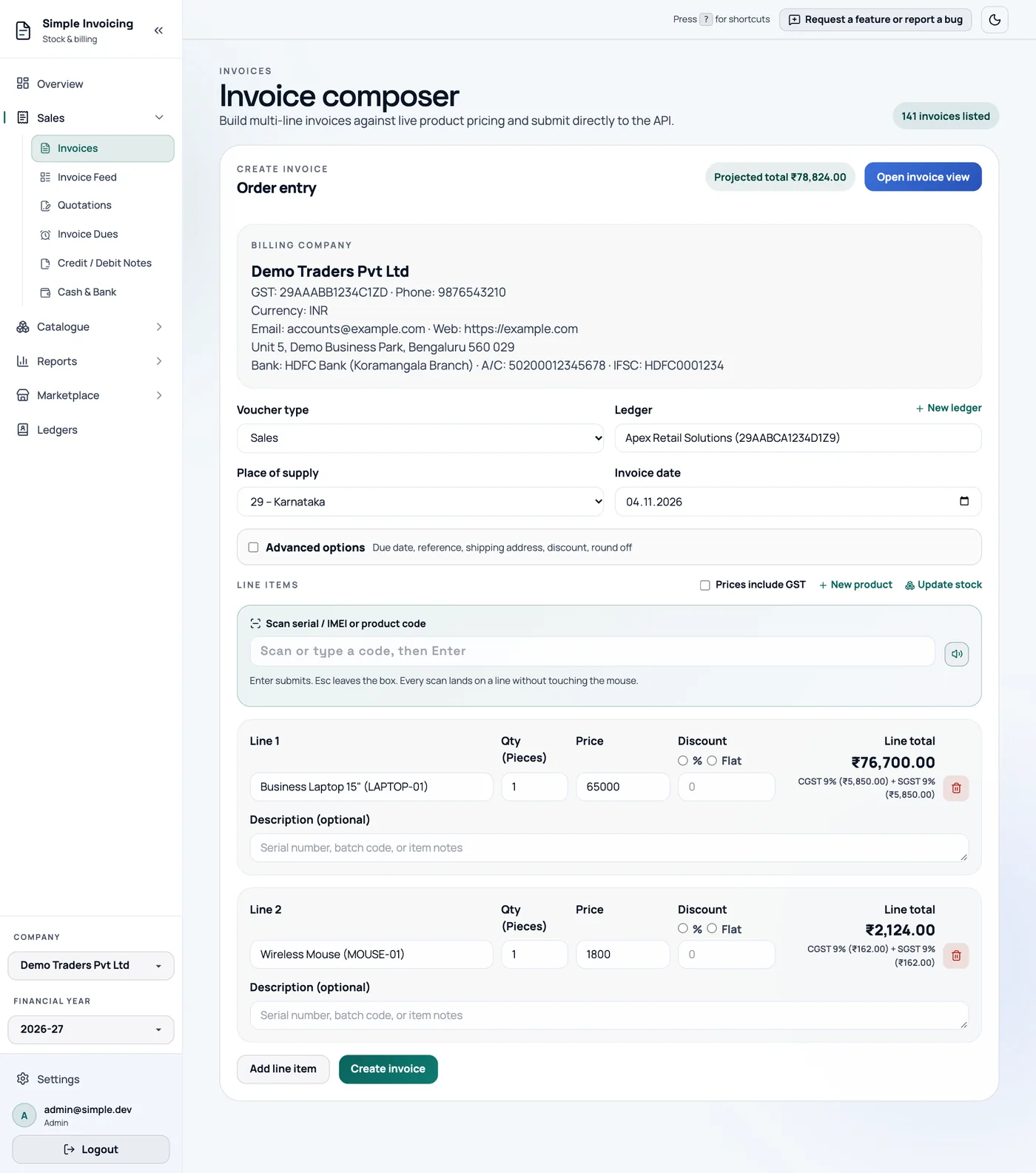
On a sale, scan or type into Scan serial / IMEI or product code. The serial lands on the line for its product, and the line is created if it does not exist yet. The quantity follows the number of serials, so you cannot type it.
On a purchase, each scan in Scan to register serial / IMEI registers a new serial. Paste list adds many at once and shows a result for each one.
You can also use the box on each line, or click Pick from stock and Select oldest to choose from what you hold.
A hardware barcode scanner works without any setup. The app recognises its typing speed and submits by itself. If you type by hand, press Enter. The bar has a sound toggle for a beep on each scan.
Scanning a plain product barcode adds one unit of an untracked product. For a serial-tracked product, it adds the line and asks you to scan each serial.
When a scan is refused
| Message | What it means |
|---|---|
| Already added to line N. | That serial is already on this invoice. |
| Already sold on INV… (date) | It was sold on that invoice. The Open invoice link takes you there. |
| … belongs to … | The serial is registered to a different product. |
| No product or serial number found | The code is not in your system. On a sale, check for a typing error or a missed purchase. |
| Already registered to … | On a purchase, this serial already exists. |
| This product is serial tracked - scan or add at least one serial before saving. | The line needs its serials before you can save. |
Look up a serial
- Search for the serial in the Products & Stock search box. It finds the product even when the unit has been sold.
- Click the Serial numbers icon on a product to list all its serials. Each shows In stock or Sold, with the invoice and date it came in and went out.
Cancelling a sale returns its serials to stock. A purchase cannot be cancelled while one of its serials has been sold, so cancel that sale first.
Returns of serial-tracked products
The credit note screen has no place to enter serials, so a Return credit note for a serial-tracked product cannot be completed there yet. A Discount credit note works normally. See Credit and debit notes.