
Cash and bank
Record money coming in and going out, allocate it to invoices, and see the balance of each account.
Only admins and managers can record, edit or delete receipts and payments. Staff get "Insufficient permissions".
Bank and cash accounts
Sales → Cash & Bank → Manage Account opens your accounts. Set these up first.
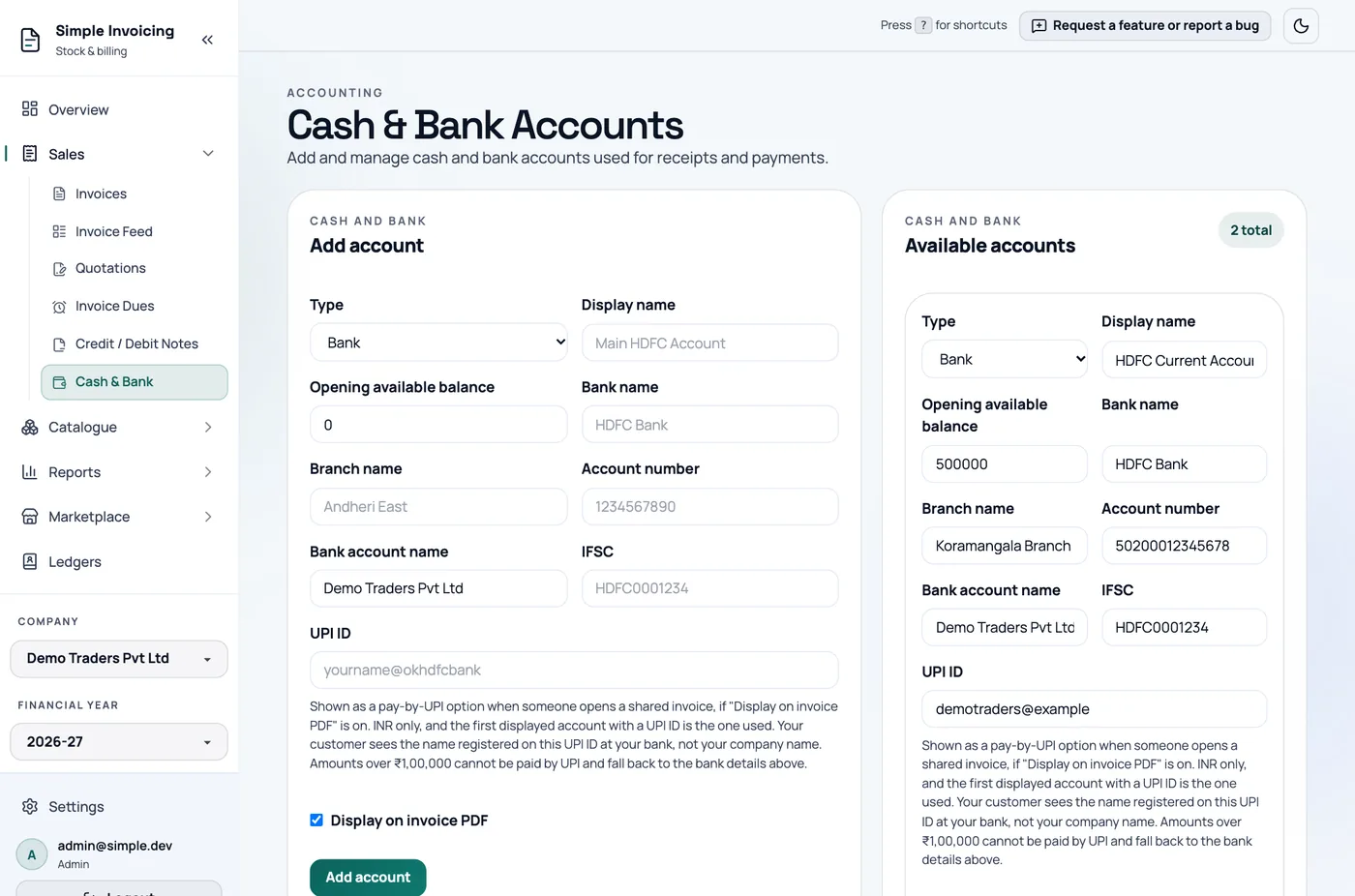
- Under Add account, choose the Type: Bank or Cash.
- Enter a Display name and the Opening available balance.
- For a bank account, enter the Bank name, Branch name, Account number, Bank account name and IFSC.
- Optional: enter a UPI ID in the form
name@bank, for Pay by UPI. - Tick Display on invoice PDF to print the bank details on invoices.
- Click Add account.
Accounts cannot be deleted. Deactivate hides one from new receipts and payments. The form is only editable by admins.
Record a receipt against invoices
A receipt is money you receive. You can start one from a ledger's page with Record Receipt / Payment, or by choosing Receipt as the voucher type on the Invoices page.
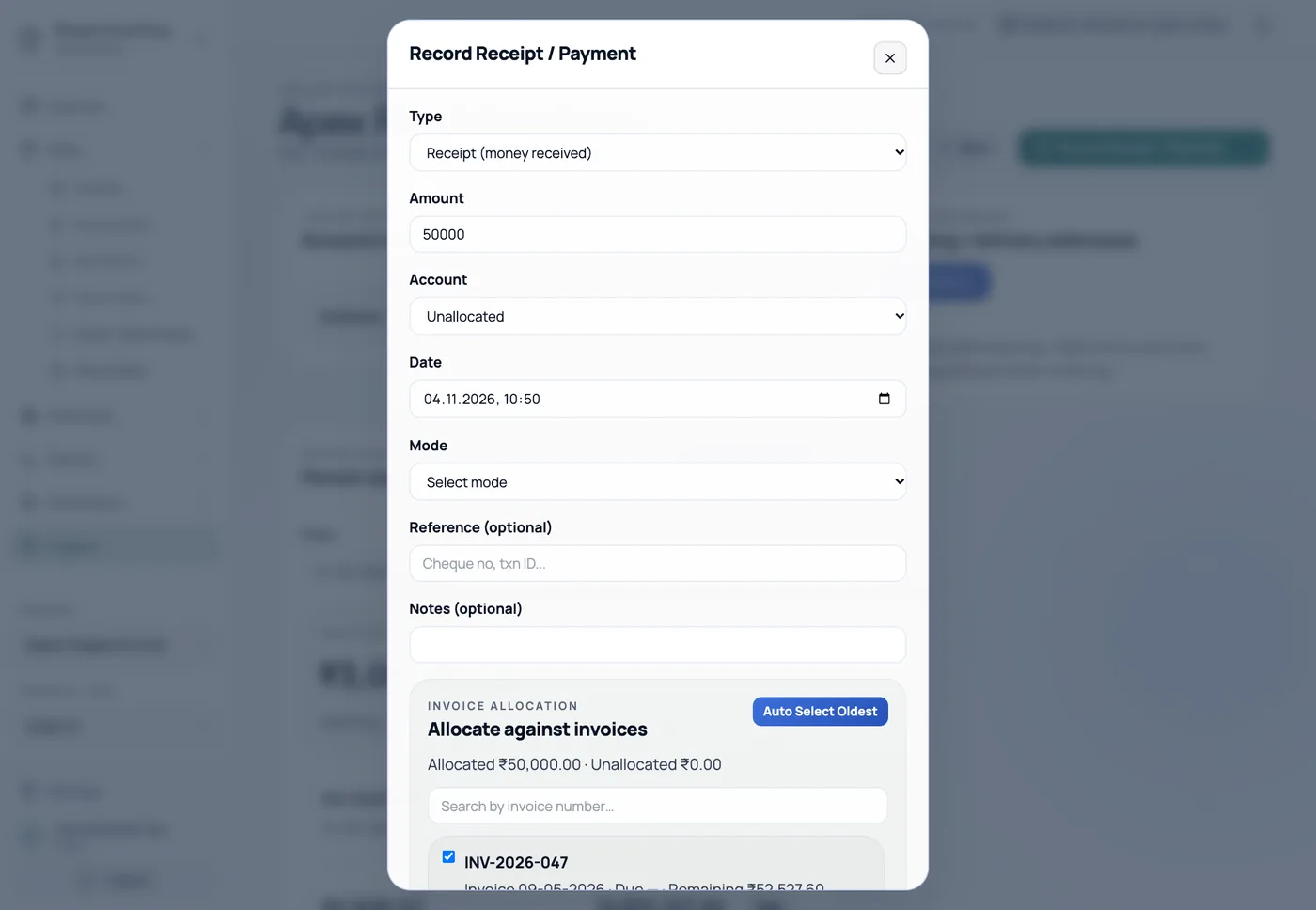
- Enter the Amount.
- Choose the Account it went into, or Unallocated.
- Check the Date, and choose the Mode: Cash, Bank Transfer, UPI or Cheque.
- Add a Reference (optional), such as a cheque number or transaction ID.
- Under Invoice Allocation, click Auto Select Oldest to settle the oldest invoices first, or tick invoices and enter the Allocated amount yourself.
- Click Save Receipt.
The status line shows what is allocated and unallocated. You can allocate part of the amount, and pay part of an invoice. You cannot allocate more than the receipt or more than an invoice has remaining.
Always allocate when you can
Only allocated money reduces an invoice's remaining balance on Invoice Dues, and marks the invoice as paid. An unallocated receipt still counts on the ledger's balance.
Each receipt has a PDF you can open from the ledger's statement, using Receipt, then share, print or download.
Record a payment
A payment is money you pay out, usually to a supplier.
From a ledger, choose Payment in the Record Receipt / Payment dialog. You can allocate it against that supplier's purchase invoices.
From the Invoices page, choose the Payment voucher type, then enter the Account, Payment mode, Reference # and Amount, and click Create payment voucher. This route has no allocation, so use the ledger when you want to settle particular bills.
The register
Sales → Cash & Bank lists the entries for one account.
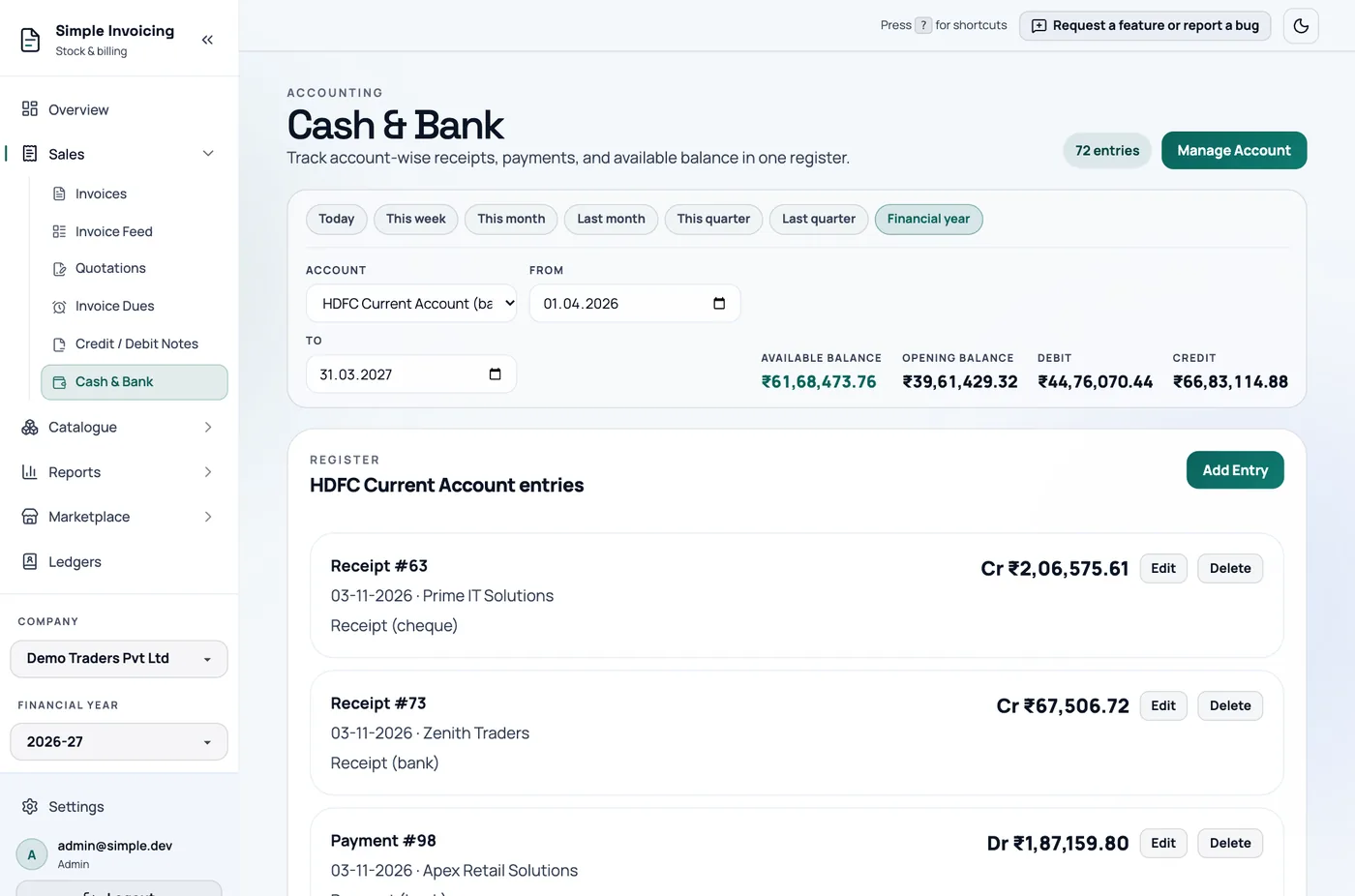
Choose an Account, or Unallocated for entries with no account, and a date range. It defaults to the active financial year.
- Credit is money in. Debit is money out.
- Available balance = opening balance + credits − debits.
Entries with no party
Use Add Entry for things that do not involve a ledger, such as an ATM withdrawal or a cash deposit. Choose Debit (withdrawal / outflow) or Credit (deposit / inflow), enter the amount and date, and add a Description.
Edit or delete an entry
Edit keeps any allocations and reference. An entry cannot move to a different financial year. To do that, delete it and record a new one.
Delete cancels the entry and removes its effect on invoice balances.
Receipts and payments share one number series, PAY-….