
Quotations and proforma invoices
A quotation or proforma invoice is an offer. Nothing here affects stock, ledgers, reports or GST returns until you convert it to an invoice. They have their own numbers (QT-… and PI-…), so they never use up an invoice number.
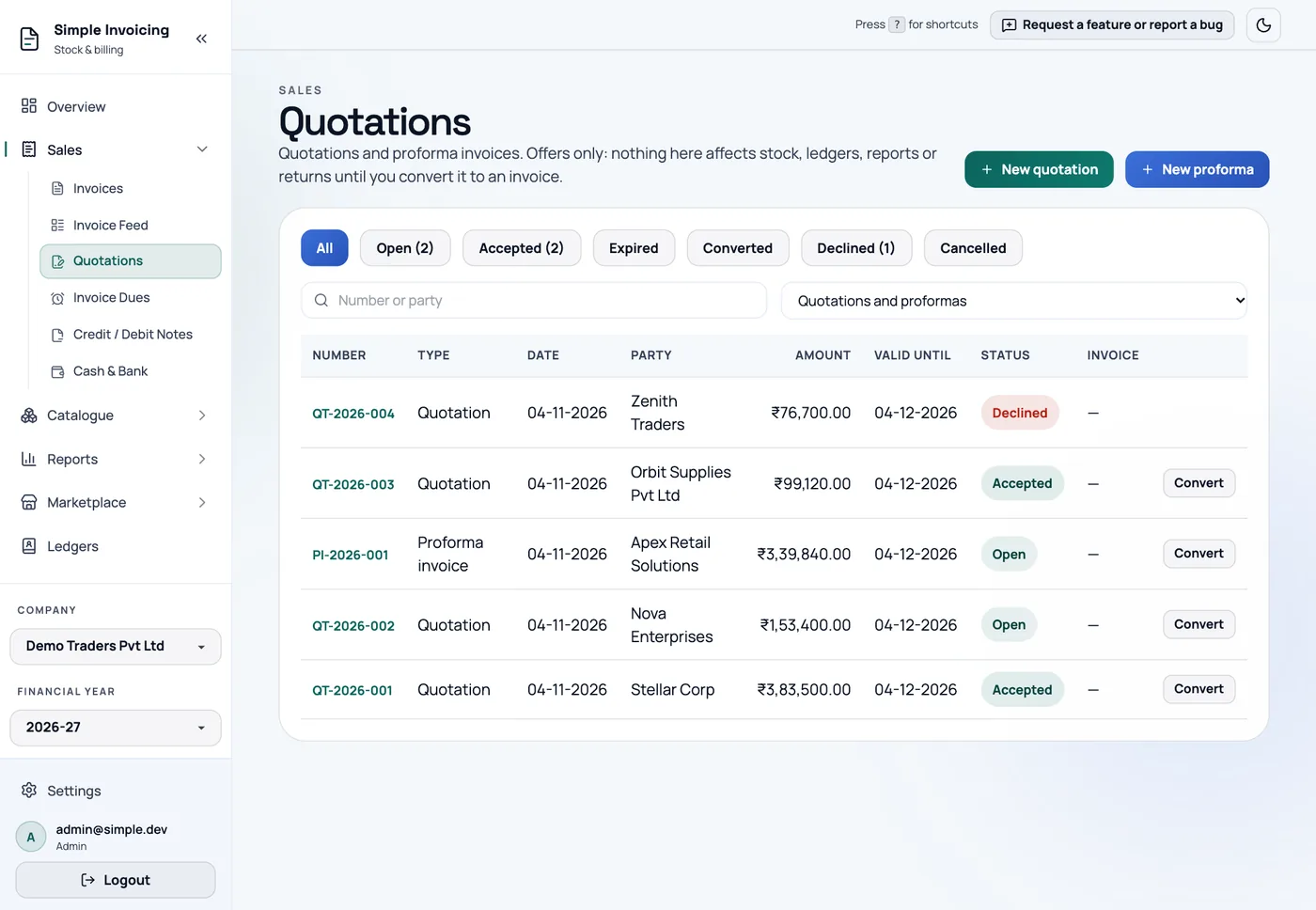
Create one
- Go to Sales → Quotations and click New quotation or New proforma.
- Choose the Ledger and add lines, as with an invoice.
- Check Valid until. It defaults to 30 days after the document date. Leave it blank for no expiry.
- Click Create quotation or Create proforma invoice.
Stock is not checked, so you can quote items you do not have yet.
The PDF states that it is not a tax invoice and cannot be used to claim input tax credit, and that the GST shown is an estimate. The place of supply is not shown on these documents. Tax is split by comparing the two GSTINs, and the app warns you on conversion if the split changes.
Follow it up
Click a number to open its preview, where you can Share, Print or Download it. The ⋯ menu holds the actions.
| Status | Meaning | Available actions |
|---|---|---|
| Open | Waiting for an answer. | Edit, Convert, Mark accepted, Mark declined, Duplicate, Share, Cancel |
| Accepted | The customer agreed. | Edit, Convert, Reopen, Duplicate, Share, Cancel |
| Declined | The customer said no. | Reopen, Duplicate, Share, Cancel |
| Expired | Open or accepted, past Valid until. | You can still edit it to extend, or convert it. |
| Converted | An invoice was made from it. | Duplicate, Share |
| Cancelled | Withdrawn. It keeps its number. | Duplicate |
You can add a note when you change status, such as "PO 123 by email". If you edit an accepted quotation, it stays accepted, so reopen it first if the customer needs to agree to the changes.
Filter by status, search by number or party, or narrow to one document type.
Convert to an invoice
Click Convert, or Convert to invoice in the menu.
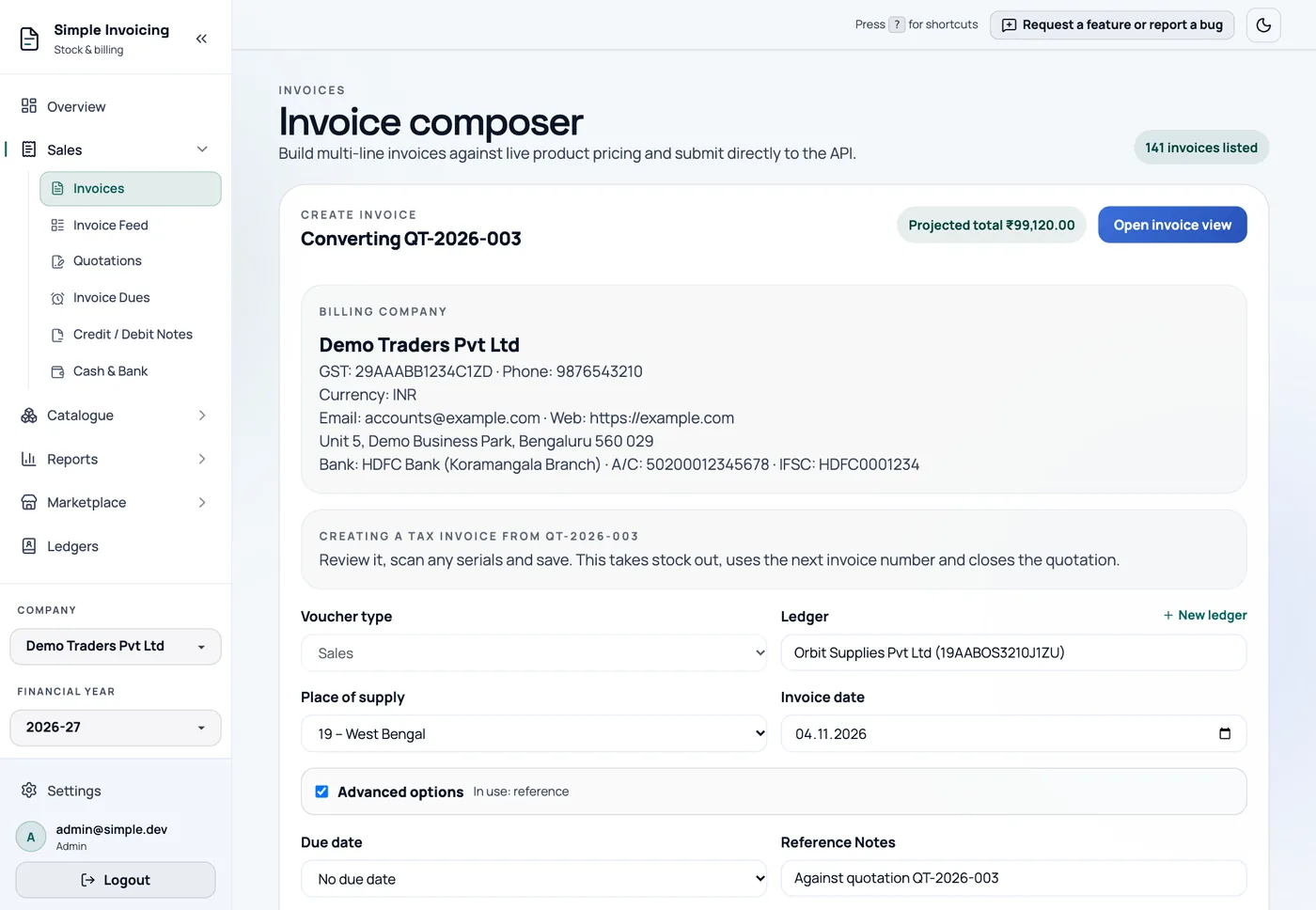
Review the form. The date is today, and the reference says which quotation it came from. You can change the lines. Warnings point out anything that has changed, such as a GST rate, a tax split or a stock shortfall.
Scan serials for any serial-tracked products.
Click Create invoice.
The invoice takes stock out, uses the next invoice number, and marks the quotation as converted.
Good to know:
- A quoted price is kept even if the product's price has changed. The GST rate uses the current rate.
- A quotation can only have one live invoice.
- If you quote 10 and invoice 6, the remaining 4 do not stay open on the quotation.
- If you cancel the invoice, the quotation returns to Open or Accepted.