
GSTR-1 filing
Reports → GSTR-1 Filing checks your sales for a period and produces the JSON file for the GST portal. It does not file for you and does not connect to the portal. You upload the file yourself.
1. Choose the period
The page opens on last month. A return covers one whole calendar month, or one whole quarter starting in January, April, July or October if you file quarterly.
Click Validate & proceed.
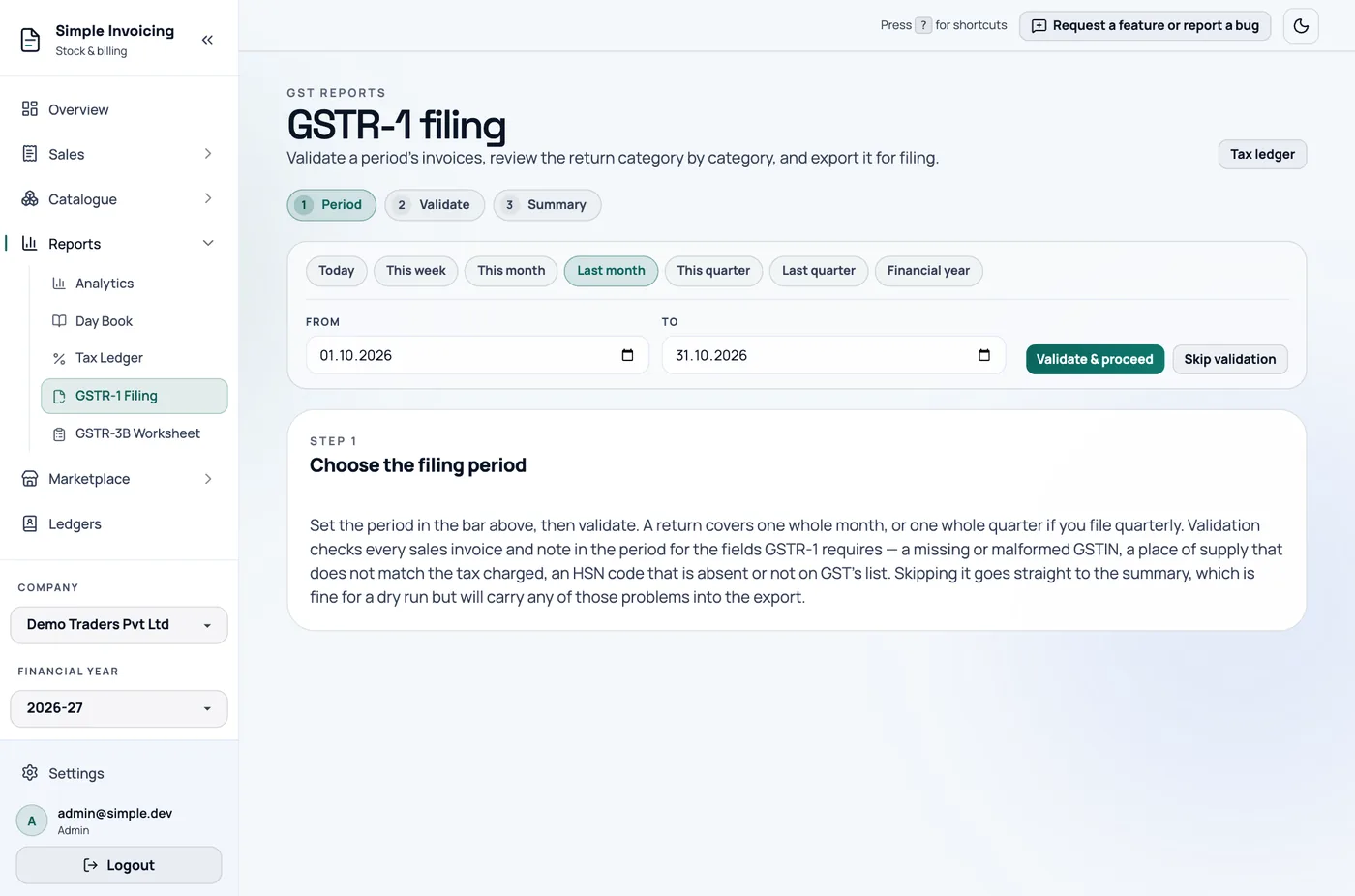
Changing a date sends you back to this step and clears the earlier results.
2. Fix any problems
The table lists each issue with its invoice, field and severity. Click an invoice number to open it.
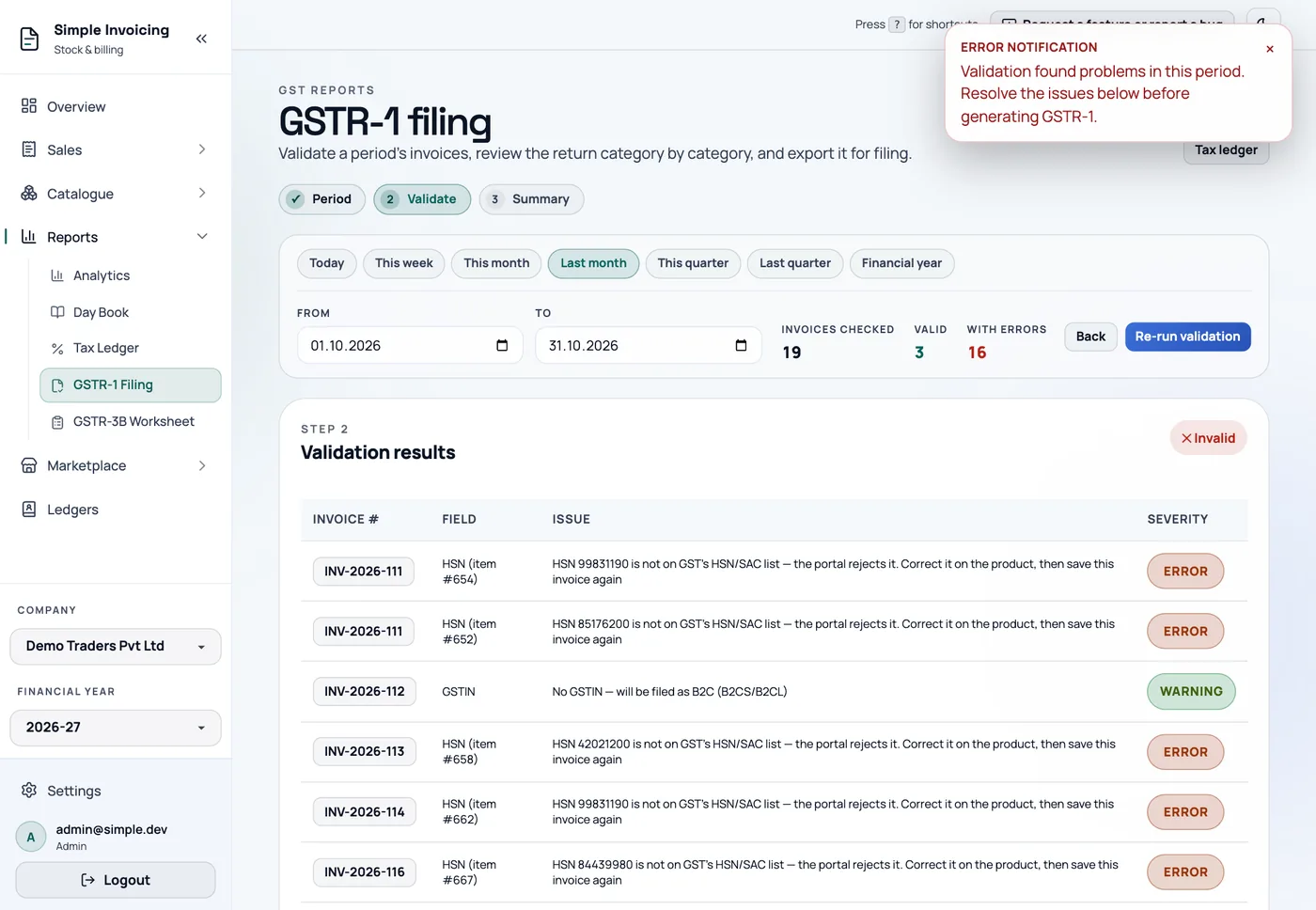
Errors must be fixed, because the portal would reject them. Warnings let you continue, but read them.
| Error | How to fix it |
|---|---|
| Not a return period | Choose one whole month or quarter. |
| Invoice number too long or with invalid characters | GSTR-1 allows at most 16 characters: letters, digits, - and /, starting with a letter or digit. |
| Duplicate invoice number | Each number must be unique. |
| Invalid GSTIN format | Correct the GSTIN on the customer's ledger. |
| Missing HSN, wrong length, or not on GST's list | Correct it on the product, then save the invoice again. |
| Not a GST slab | The rate must be 0, 0.1, 0.25, 1, 1.5, 3, 5, 6, 7.5, 12, 18, 28 or 40. |
| Missing or zero taxable value | Check the invoice's lines. |
| CGST/SGST charged, but the place of supply is another state (or the reverse) | Edit the invoice's place of supply so the tax heads match. |
| The buyer's GSTIN is your own | A sale to yourself is not a B2B supply. |
Credit notes get the same checks. The fix is different because they cannot be edited: cancel the note, correct the invoice, then raise the note again with the same date. It gets a new number.
Common warnings:
- No GSTIN: the invoice is filed as B2C.
- Zero value: the invoice is counted only in Table 13 (documents issued).
- 0% sales: these are filed as taxable rows at rate 0, not in Table 8 (nil-rated or exempt) or Table 6 (zero-rated). Check with your accountant and correct them on the portal if needed.
After fixing, click Re-run validation. Once there are no errors, click View summary.
Skipping validation
Skip validation in step 1 jumps straight to the summary, which is useful for a dry run. The JSON export still checks again and refuses to download while blocking errors exist.
3. Review and export
The summary shows taxable value and tax for each category:
| Category | Includes |
|---|---|
| B2B | Sales to buyers with a GSTIN. |
| B2CL | Inter-state sales to unregistered buyers above ₹1,00,000 (₹2,50,000 for invoices dated before 1 August 2024). |
| B2CS | All other sales without a GSTIN. |
| Credit notes | Credit notes issued in the period. |
Debit notes always shows empty. The HSN-wise summary below is net of credit notes.
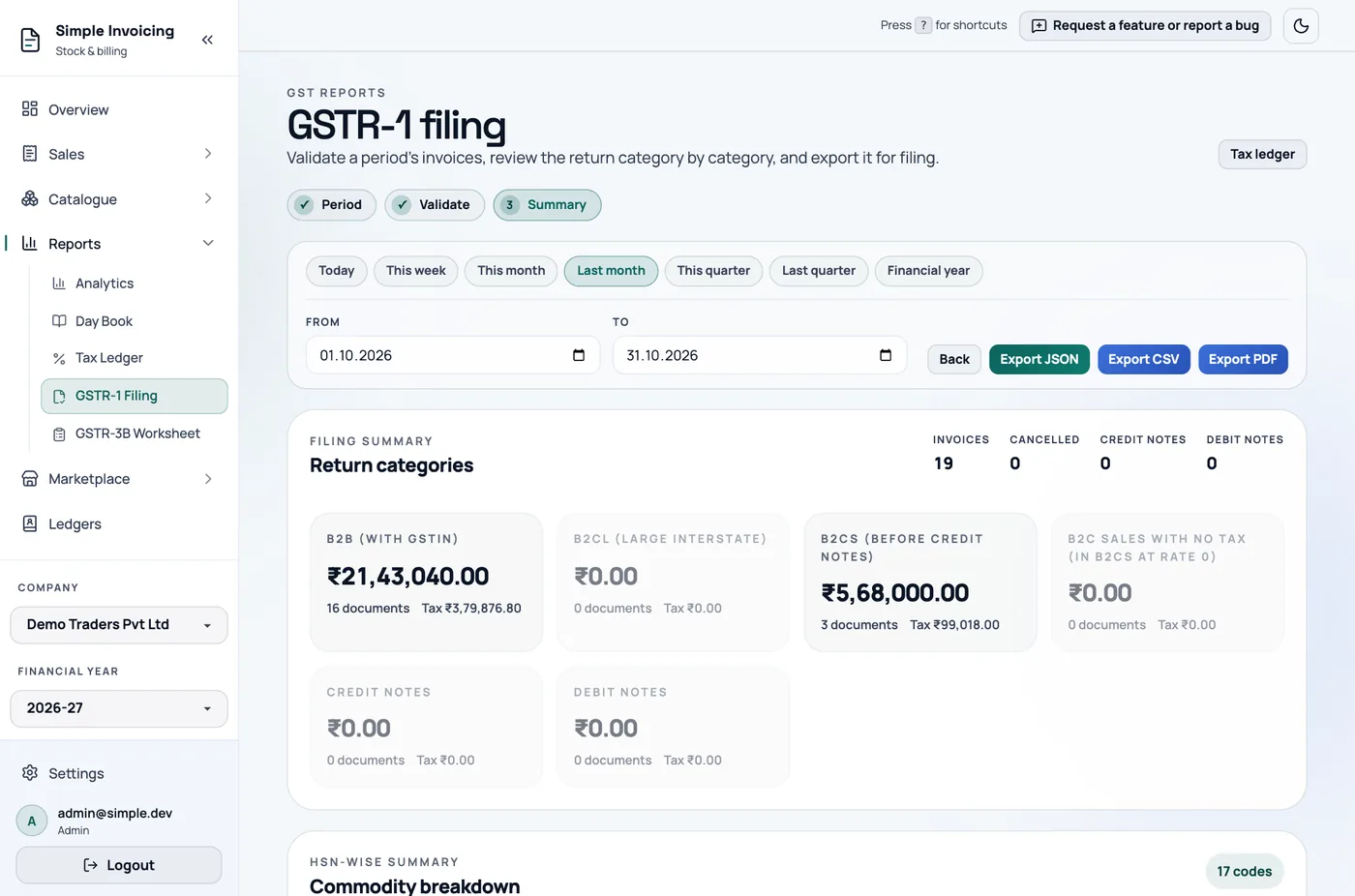
There are three downloads:
- Export JSON is the file to upload to the portal. It needs a valid company GSTIN in Company settings, and is refused if the period is not a whole month or quarter.
- Export CSV is a copy for review and reconciliation, not for upload.
- Export PDF is a report for your records.
4. Upload to the GST portal
These steps happen on the government portal, not in Simple Invoicing, and its screens may change:
- Sign in at gst.gov.in and open Services → Returns → Returns Dashboard.
- Choose the financial year and return period.
- Under GSTR-1, choose Prepare Offline and upload the JSON file.
- When processing finishes, check the result. If the portal produces an error report, correct those entries in Simple Invoicing, then export and upload again. The app does not read portal error reports, so you need to match them up by hand.
- Review the return online, then submit and file it on the portal.
Check the figures with your accountant before filing. Filing is your responsibility, and the portal's values are the ones that count.