
Manufacturing
If you assemble or make products, a bill of materials (BOM) lists the components for one finished unit. Produce Items then records each production run, taking the components out of stock and adding the finished product.
Only admins and managers can change a BOM or record production.
Set up a bill of materials
- In Products & Stock, open the product's settings and tick This product is manufactured in-house. It then shows a Made in-house tag.
- Click the Bill of materials icon on its row.
- Choose a Component product, enter the Quantity required to make one unit, and click Add component.
- Repeat for each component.
The Estimated material cost per unit at the bottom uses the components' selling prices, not their purchase prices, so treat it as a rough guide.
A product cannot be a component of itself, directly or through another product. The app refuses a BOM that would create such a loop.
Record production
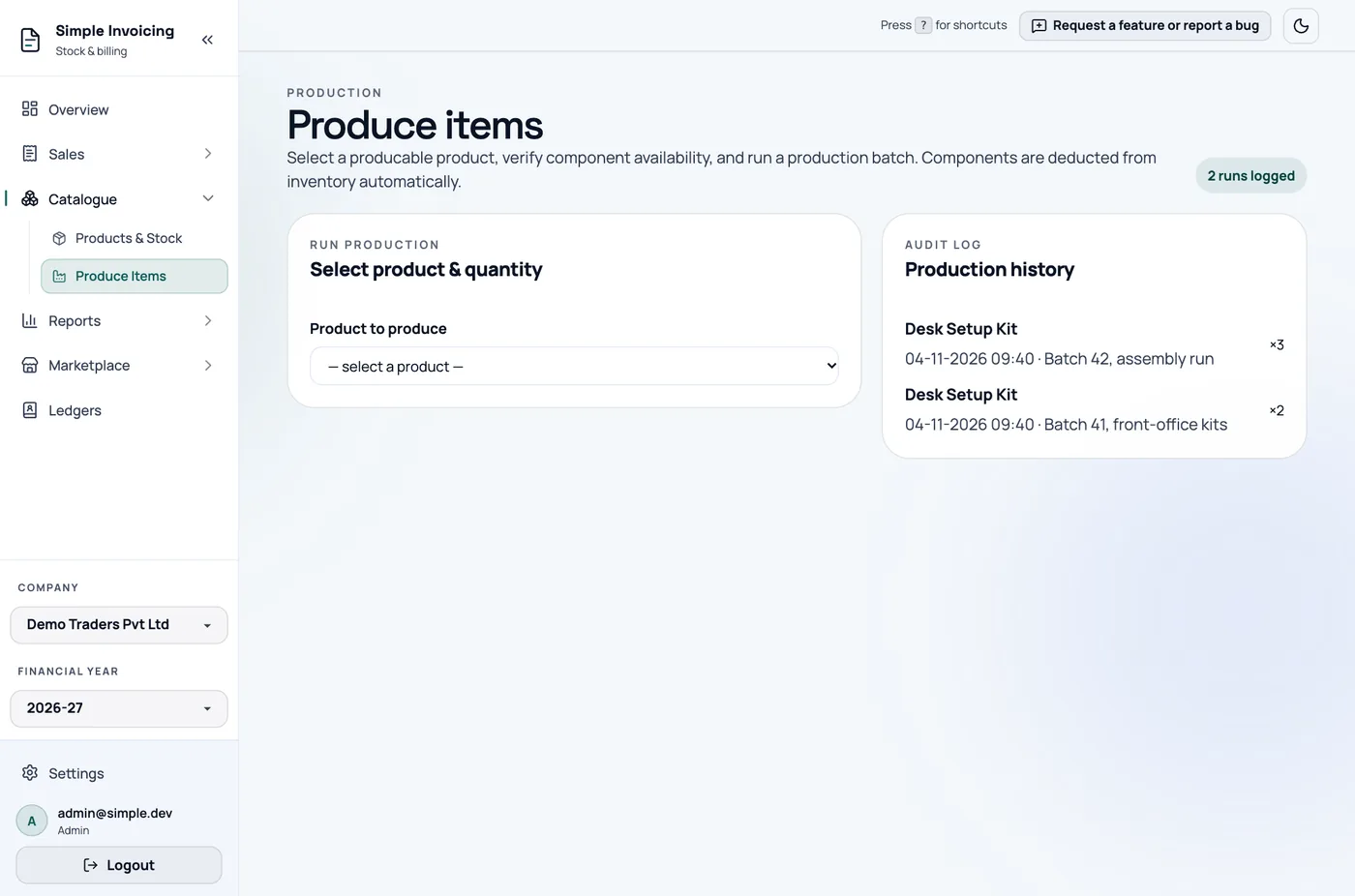
- Go to Catalogue → Produce Items.
- Choose the Product to produce. The panel lists the components needed.
- Enter the Quantity to produce and any Notes (optional), such as a batch number.
- Click Produce.
In one step, each component's stock falls by the required amount and the finished product's stock rises. The run is logged under Production history.
The run is refused, with no stock changed, if any component is short. The message tells you which component and how much you need and have.
Limits
- Sub-assemblies are not broken down. If a component is also made in-house, produce it first as its own run.
- Serial-tracked products cannot be produced yet, whether as the finished product or a component.
- There is no undo. To correct a mistaken run, adjust the stock of each product with a reason.