
Company setup
Settings → Company controls what appears on your invoices and how they are numbered. Everyone can open this page. Admins and managers can save changes, and only admins can see the invoice series.
Invoice header details
| Field | Notes |
|---|---|
| Company name | Required. |
| Address | Required. |
| GST | Your GSTIN. Optional, but needed to export GSTR-1 and join the marketplace. Format, state code and check digit are checked. |
| Currency | Starts on USD. Choose INR - Indian Rupee. USD, EUR, GBP and AED are also available. |
| Phone number, Email, Website | Optional, shown on your documents. |
Options below the form:
- Show SKU column on invoice PDFs: when off, the item description gets more width.
- Show pay-online QR on invoice PDFs: adds a QR code that opens a page where your customer can pay by UPI. See Pay by UPI.
- Show "Pay by UPI" button on shared invoices: adds tap-to-pay shortcuts. Turn it on only if your UPI ID is registered as a merchant, because otherwise apps such as Paytm warn your customer. The QR code works either way.
Click Save company details.
Logo
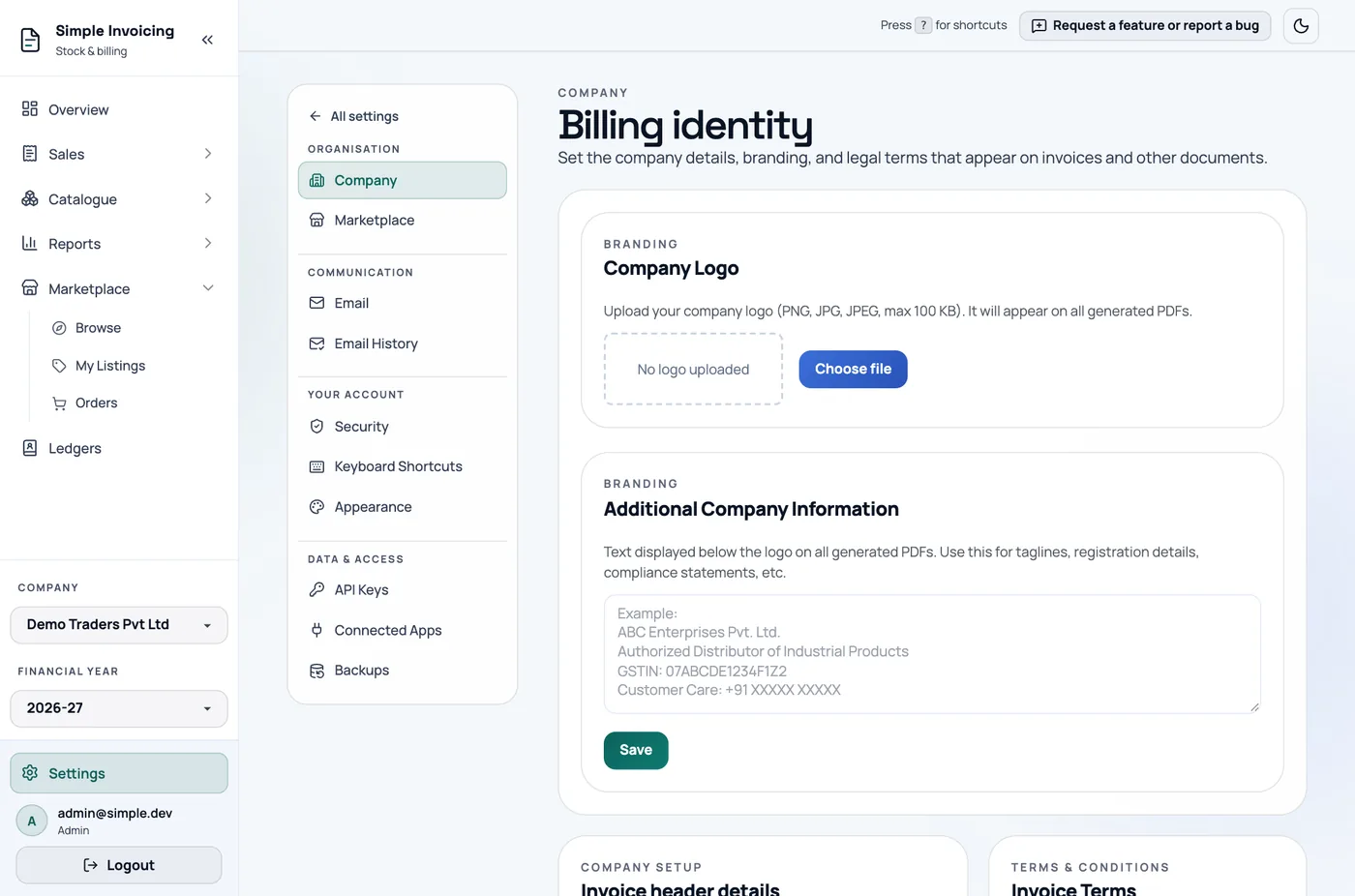
Click Choose file under Company Logo. The logo must be a PNG or JPEG, no larger than 100 KB. It appears on all generated PDFs.
Larger logos are refused, even though one on-screen message mentions 512 KB. The logo is resized to fit and saved as a JPEG, so a transparent background becomes solid.
Additional Company Information
This text appears below the logo on all PDFs. Use it for taglines, registration numbers or compliance statements.
Bank details
Bank details live with your accounts, not on this page. Go to Sales → Cash & Bank → Manage Account, or click Manage cash & bank accounts here. Only accounts with Display on invoice PDF ticked appear on invoices. See Cash and bank.
Invoice Terms
Add the terms that appear on your invoices. They are numbered automatically, in the order you add them. You can edit or delete a term, but not reorder it, so add them in the order you want.
E-Way Bill Configuration
| Setting | What it does |
|---|---|
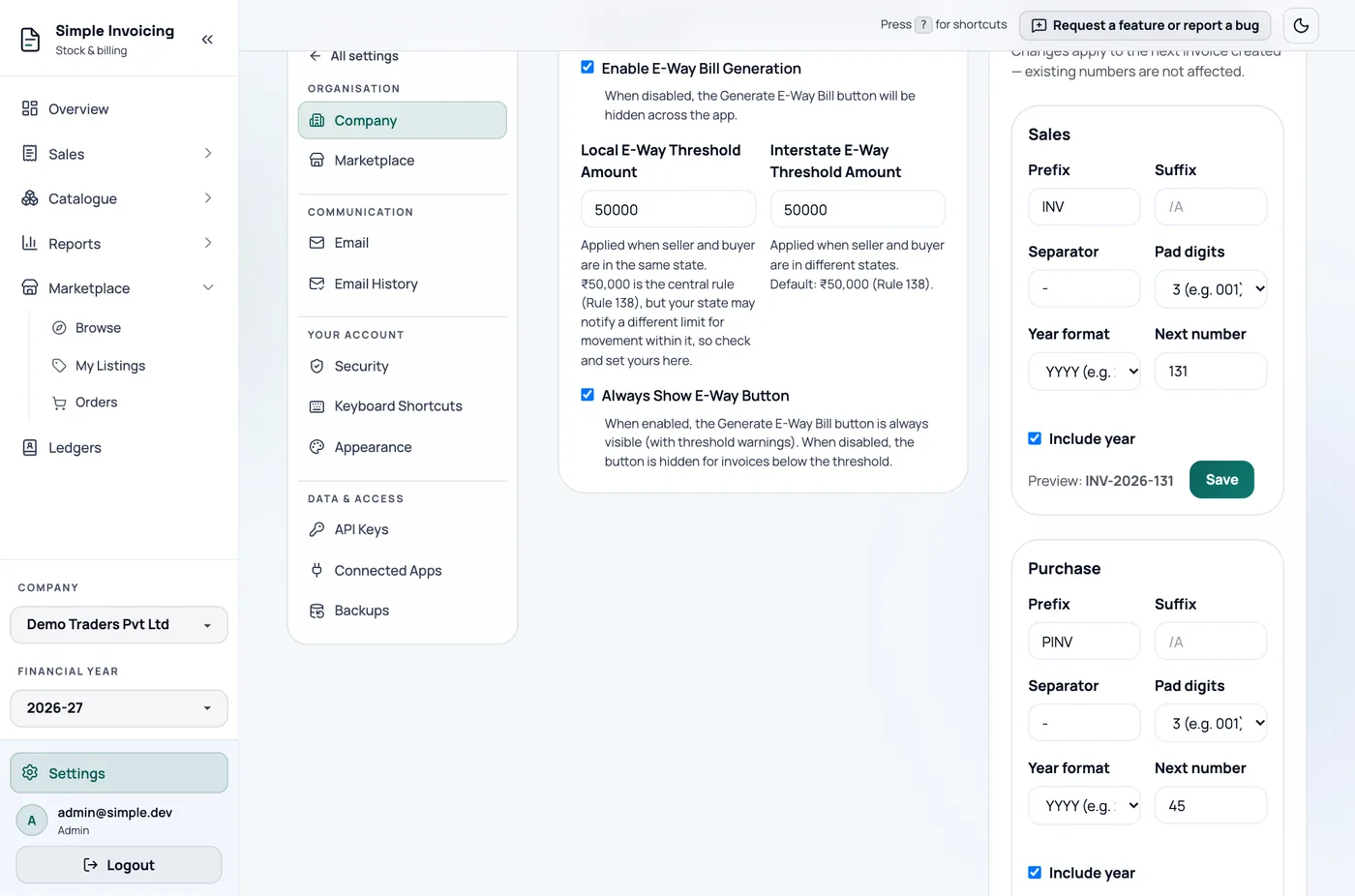
| Enable E-Way Bill Generation | When off, the e-way bill button is hidden everywhere. |
| Local E-Way Threshold Amount | The limit for deliveries within your state. Defaults to 50,000. |
| Interstate E-Way Threshold Amount | The limit for deliveries to other states. Defaults to 50,000. |
| Always Show E-Way Button | When off, the button is hidden on invoices below the limit. |
The thresholds are a guide and never block generation. States can set their own local limit, so check yours. See E-way bills.
Invoice series
This section sets how documents are numbered in the active financial year. It has a card for each type: Sales, Purchase, Payment, Credit Note, Debit Note, Quotation and Proforma Invoice.
| Setting | Meaning |
|---|---|
| Prefix, Suffix | Text before and after the number, in capitals. |
| Separator | Up to 3 characters between the parts. Defaults to -. |
| Pad digits | 001 has 3 digits. |
| Include year, Year format | YYYY (2026), MM-YYYY (04-2026) or FY (2025-26). |
| Next number | The next number to use. |
The Preview line shows the result. The default for sales is INV-2026-001. Click Save on the card.
- Changes apply to the next document. Numbers already issued do not change.
- A new financial year restarts at 1 and copies the format.
Keep sales numbers GSTR-1 friendly
If your company has a GSTIN, sales and credit note numbers can have at most 16 characters, must start with a letter or digit, and can only use letters, digits, - and /. The app refuses a format that breaks this, and warns you when a series is about to run out of room.