
Products and stock
Catalogue → Products & Stock holds everything you sell or buy. A product and its stock are one record, so you change prices and see what is on the shelf in the same place.
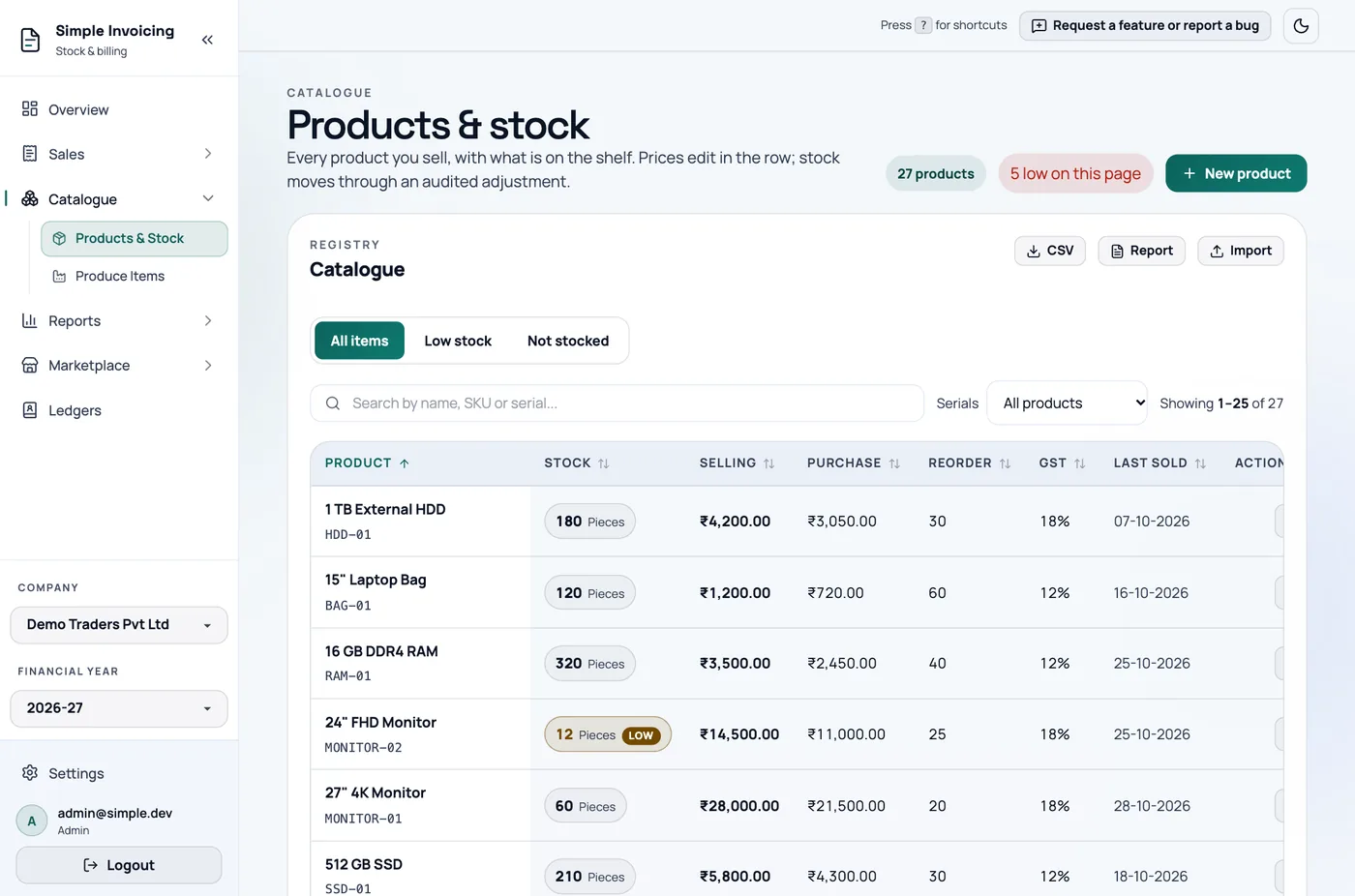
Everyone can view the catalogue. Only admins and managers can add, change or delete products or adjust stock. Staff who try get the message "Insufficient permissions".
Add a product
Click New product.
Fill in the details:
Field What to enter SKU Your own item code. Required, unique within the company, and saved in capitals. Product name Required. This is what appears on invoices. Selling price Required. Zero or more. Purchase price Optional. Analytics uses it to work out cost and profit. GST rate (%) From 0 to 100. Defaults to 0, so remember to set it. HSN / SAC Optional, but if you fill it in it must have 4, 6 or 8 digits. Unit Pieces, Kg, g, m, l, Ounce, or Custom... for your own, such as Dozen. Reorder level Stock at or below this is flagged as low. Leave at 0 to never flag. Description Optional. Under How this product is tracked, tick what applies:
- Maintain stock for this product: turn this off for services and anything you do not count. There is no separate "service" type.
- Allow fractional quantities: for weights and lengths, such as 2.5 Kg.
- Track individual serial numbers / IMEIs: see Serial numbers.
- This product is manufactured in-house: see Manufacturing.
Under What is on the shelf today, enter the Opening quantity.
Click Create product.
HSN codes the GST portal will reject
If you enter a correctly formatted HSN code that is not on GST's list, the product still saves, but you see a warning that the GST portal will reject it in GSTR-1. Fix the code before you file.
Find products
- The All items, Low stock and Not stocked tabs split the list. Low stock only includes products with a reorder level above 0.
- The search box matches name, SKU and serial number, including serials already sold.
- The Serials dropdown narrows the list to serial-tracked products or the rest.
- Click a column heading to sort, and click again to reverse. Your filters are kept if you refresh or go back.
The amber low on this page chip at the top jumps straight to the Low stock tab.
Change a product
Each row has these action icons:
| Icon | What it does |
|---|---|
| Quick edit (pencil) | Edit name, SKU, prices, reorder level and GST rate in the row. |
| All settings (sliders) | Opens the full form. |
| Duplicate | Starts a new product with everything copied except the SKU, opening stock and serials. A bill of materials is not copied. |
| Serial numbers | Serial-tracked products only. Lists every serial and where it went. |
| Bill of materials | Made-in-house products only. |
| Publish to marketplace | See Marketplace. |
| Delete (red bin) | Deletes the product, if nothing depends on it. |
Adjust stock
You cannot type a new stock figure into a product. Stock only changes through an adjustment, so there is always a record of why it moved.
- Click the stock number in the row.
- In Change, enter a positive number to add stock or a negative number to remove it. A preview shows the new total.
- Enter a Reason. It is optional when adding but required when removing.
- Click Apply adjustment.
You cannot remove more than you have. Whole-unit products only accept whole numbers. For serial-tracked products you must scan exactly as many serials as the units you are adding or removing.
Invoices, credit notes and production also move stock automatically, so use an adjustment only for things like damage, loss or a stock count.
Delete a product
Deleting cannot be undone, and it is blocked if the product is:
- on any sales or purchase invoice, or on a quotation
- serial-tracked with serial records
- linked to a marketplace listing, product or order
- a component in another product's bill of materials
- part of your production history
There is no archive option. If a product you no longer sell has history, leave it in place. Turning off Maintain stock for this product takes it out of your stock counts.
Export the catalogue
- CSV downloads everything matching the current filters, not only the current page.
- Report opens a printable product catalogue in a new window. Allow pop-ups for the site if the browser blocks it. It covers up to 5,000 products.
Import from a CSV file
Use this to load a catalogue from another system or to update prices in bulk.
- Click Import, then Download template. The template is an export of your current catalogue, so it has the right columns.
- Edit the file and save it as CSV in UTF-8.
- Choose the file and click Import and update items. Nothing uploads until you click this.
Item Name and Item Code (or Name and SKU) are required. The other columns are Purchase Price, Selling Price, Current Stock, Reorder Level, Description, HSN Code, Unit and Tax. Headings ignore case and spacing, and any extra columns are ignored.
Rows are matched on Item Code:
- New code: a product is created with stock maintained, and unit Pieces if the Unit cell is blank.
- Existing code: the product is overwritten with the values in the file.
Blank cells overwrite values
For an existing product, a blank selling price, purchase price, GST rate or reorder level is saved as 0. Current Stock also overwrites the stock figure, unless the product is serial-tracked. Blank Description, HSN Code and Unit cells leave those values alone. Keep every column filled in, or start from the template.
The import works row by row. Bad rows are skipped and the good ones are saved, and the result screen shows the numbers created, updated and skipped, with the reason for each problem. Row 2 is the first data row. You can safely import the same file again after fixing it.
Importing cannot turn on serial tracking, fractional quantities or the service setting. Change those on the product itself.