
Ledgers
A ledger is the account for someone you deal with. The same type of ledger covers customers and suppliers, and one party can be both. Every invoice, receipt and credit note posts to a ledger, so its statement is your full history with that party.
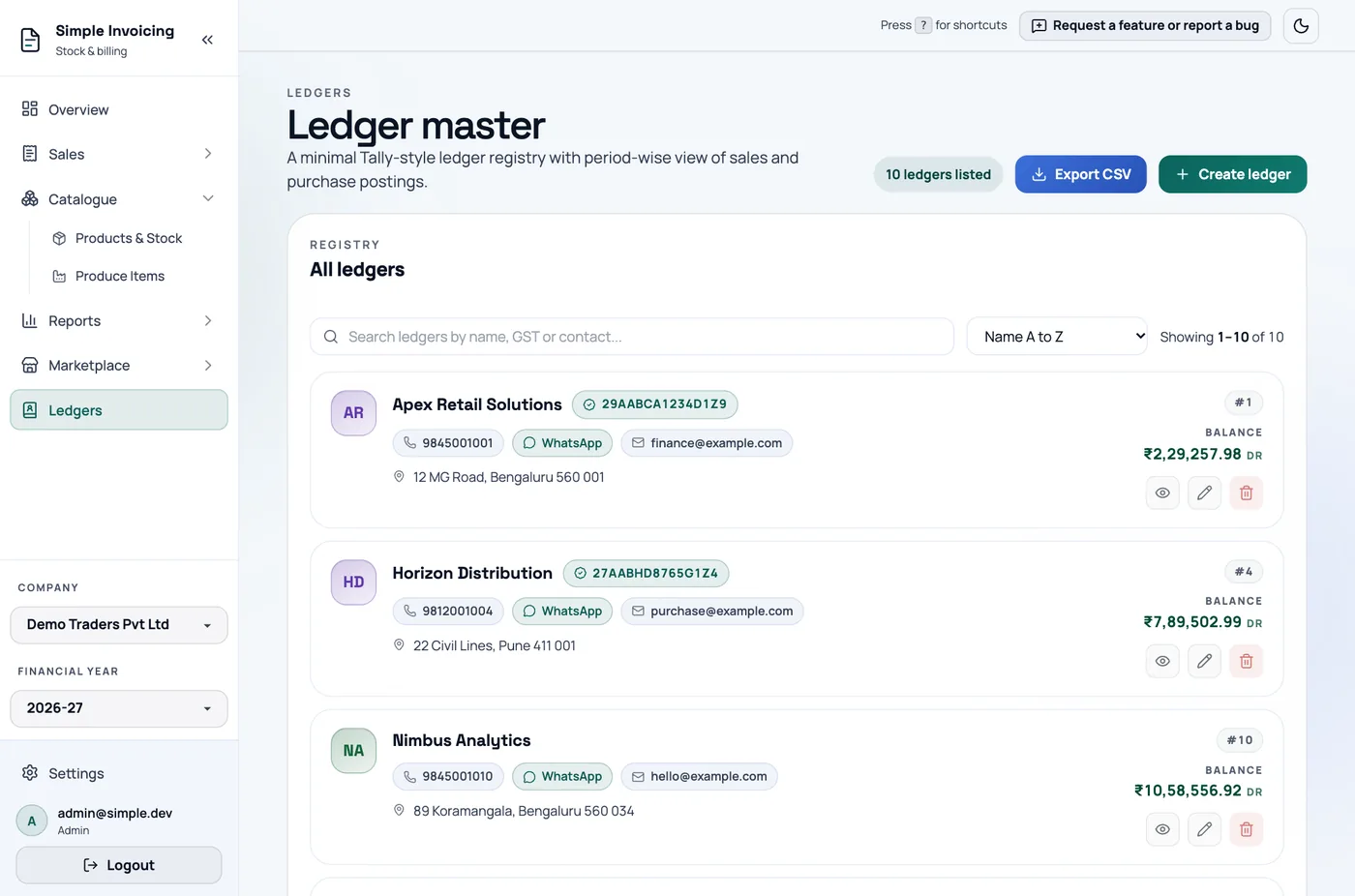
Everyone can view ledgers and statements. Only admins and managers can create, edit or delete ledgers or email statements and reminders.
Create a ledger
Go to Ledgers and click Create ledger.
Fill in the details:
Field Notes Ledger name Required. Phone number Required. Used for the call and WhatsApp links. GST Optional. Spaces are removed and letters capitalised. Once valid, it shows the PAN and state code. Opening balance and Type Optional. Debit means they owe you; Credit means you owe them. Address Required. Email, Website Optional. The email is used for sending documents. Bank name, Branch, Account holder, Account number, IFSC Optional. Click Create ledger.
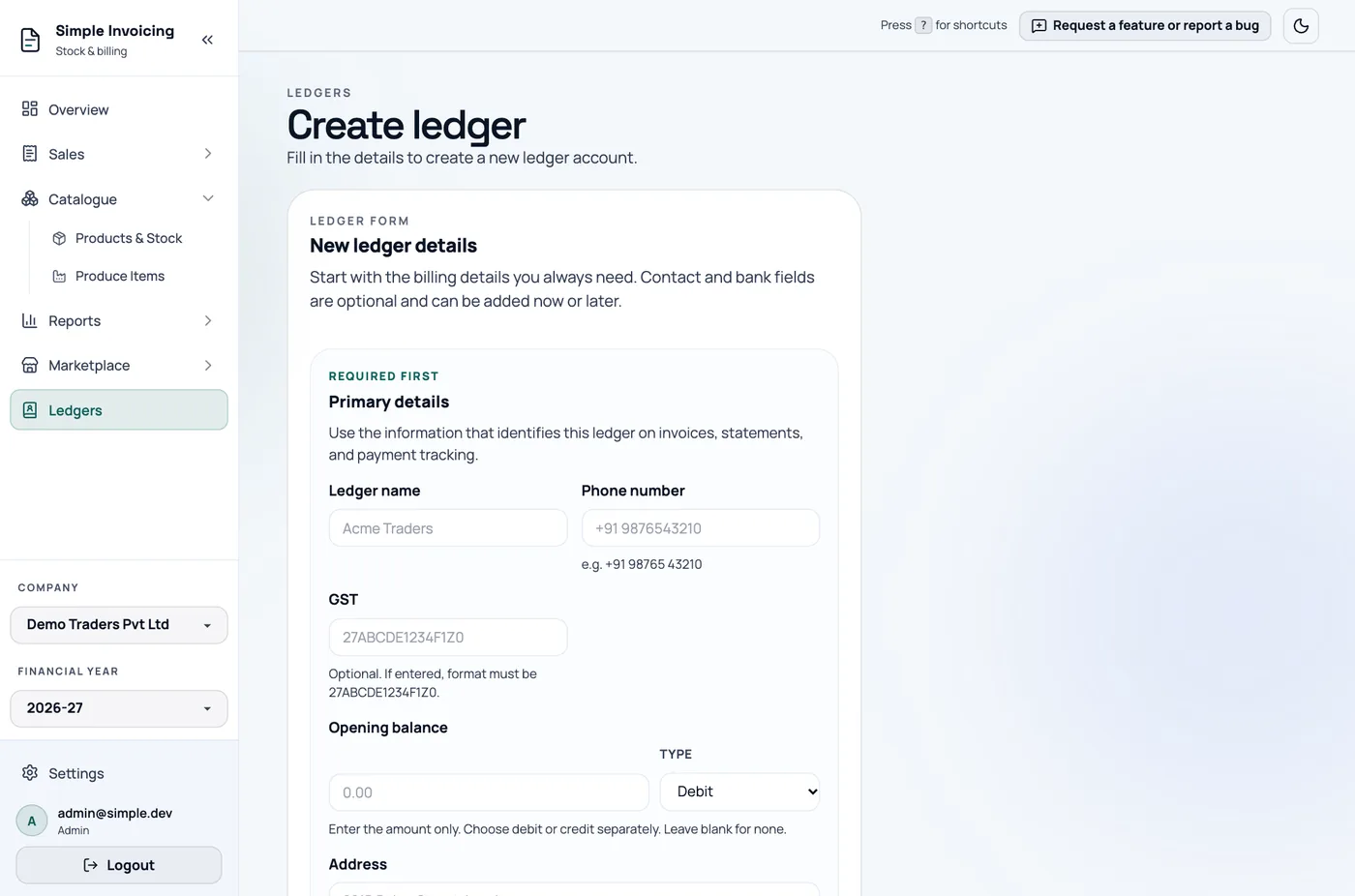
The opening balance is dated the first day of the active financial year. Entering 0 or leaving it blank removes it.
How GSTINs are checked
The app checks the format, the state code and the final check digit, and it blocks saving if any of them fail. This catches typing errors but does not confirm that the GSTIN is registered on the GST portal.
Each GSTIN can belong to only one ledger per company. The app has no separate state field: the state comes from the first two digits of the GSTIN.
Find a ledger
Search by name, GSTIN, phone or email, and sort by name, newest or highest balance.
Each card shows a Balance. Dr means the party owes you and Cr means you owe them.
Export CSV downloads every ledger matching your search, with its balance. In the file, positive balances are debit and negative balances are credit.
Read a statement
Click a ledger to open its statement.
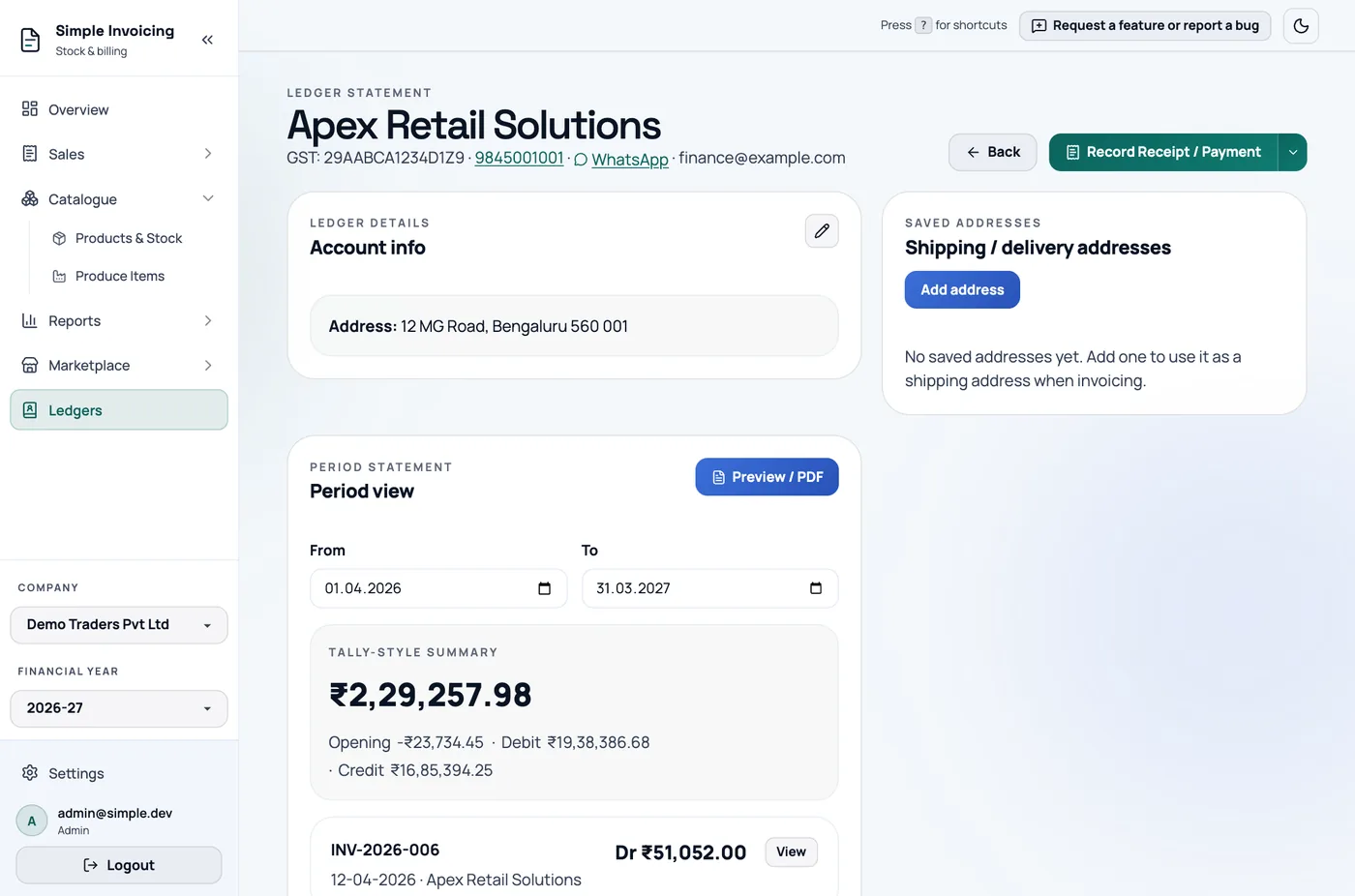
Period view defaults to the active financial year, and you can set your own From and To dates. The summary shows:
- Opening: the balance from everything dated before the From date
- Debit and Credit: the movement in the period
- the closing balance, which is opening + debit − credit
| Entry | Side |
|---|---|
| Sales invoice | Debit |
| Purchase invoice | Credit |
| Receipt (money in) | Credit |
| Payment (money out) | Debit |
Cancelled invoices and payments are left out.
Receipts and payments show which invoices they settled, marked Full, Partial or Unpaid. From an entry you can view the invoice, open the receipt PDF, or edit or cancel the payment.
Actions on a ledger
The Record Receipt / Payment button records money in or out. See Cash and bank.
Its arrow opens Send Reminder, Create Invoice, Create Credit Note and Share Statement.
Share or export a statement
Click Preview / PDF, which appears when the period has entries. You can then:
- Download the PDF or Print it
- Export CSV, with date, type, reference, debit, credit and running balance
- Email the PDF for the period shown
- Share a public link limited to that period, and send it on WhatsApp. You can revoke the link later
Send a payment reminder
Send Reminder emails a summary of all unpaid sales invoices, across all dates and not just the selected period. It uses the ledger's email unless you type another. Email must be set up first.
Saved delivery addresses
Under Shipping / delivery addresses, click Add address to store a warehouse or site. You can then pick it as the shipping address on an invoice. Deleting a saved address happens straight away, with no confirmation.
Phone and WhatsApp links
Phone chips call the number on your phone. WhatsApp links open a chat with the number:
- A 10-digit number is assumed to be Indian and gets +91.
- For a foreign number, enter it with its country code.
- A number with fewer than 10 digits shows no WhatsApp chip in the list.
Delete a ledger
A ledger cannot be deleted once it is linked to an invoice, quotation or payment. Ledgers with only an opening balance can be deleted.