
Send and share an invoice
The preview opens after you save an invoice, or from the eye icon in the Invoice Feed. It shows the PDF your customer will receive.
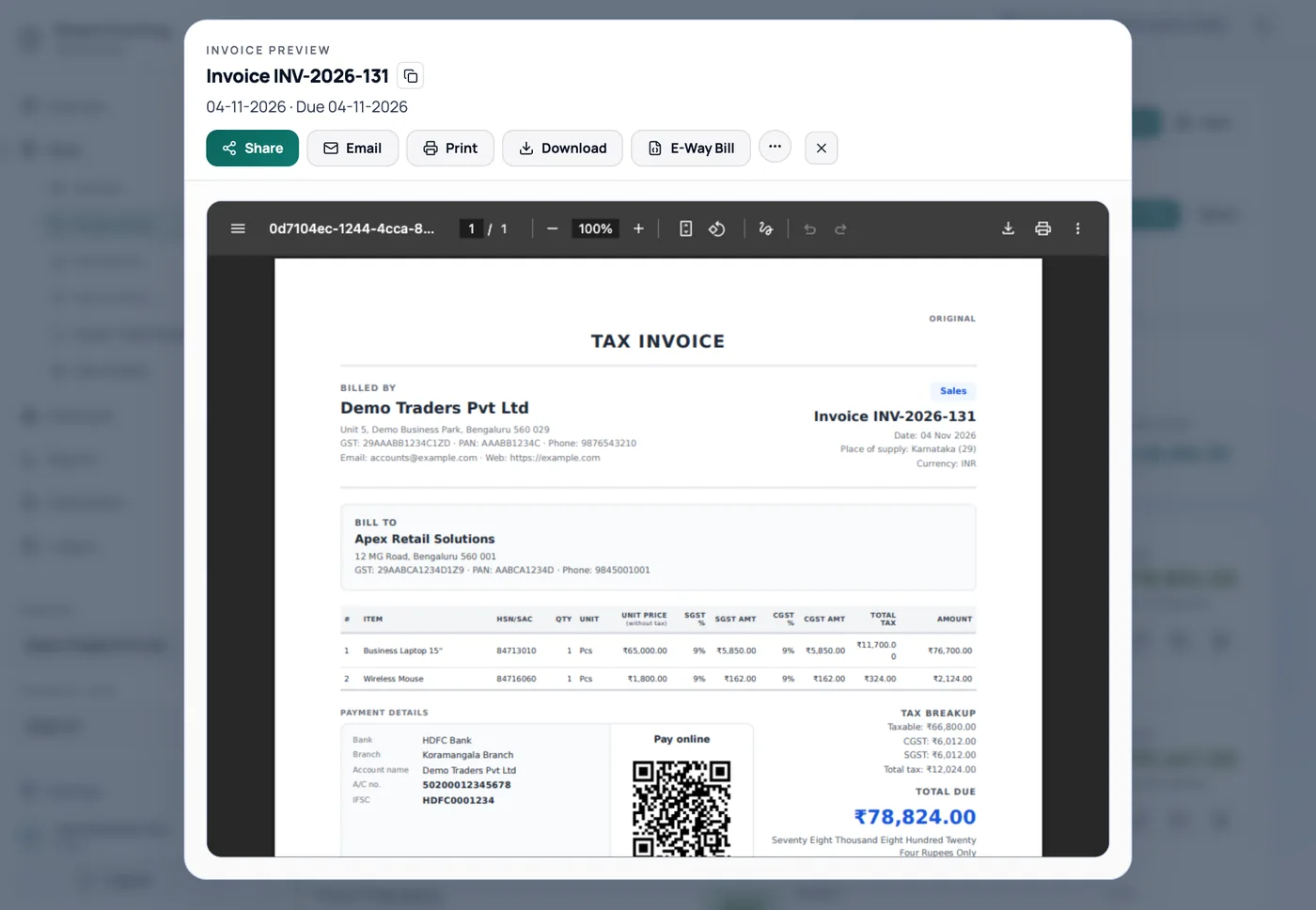
| Button | What it does |
|---|---|
| Share | Creates a public link, and sends it on WhatsApp. |
| Emails the PDF. | |
| Prints the PDF. | |
| Download | Saves the PDF. |
| E-Way Bill | Builds the e-way bill JSON file. Sales only, when enabled. |
| ⋯ → Copies | Prints 1 to 10 copies, labelled Original, Duplicate, Triplicate and so on. |
Share a link or send on WhatsApp
Click Share. A link is created.
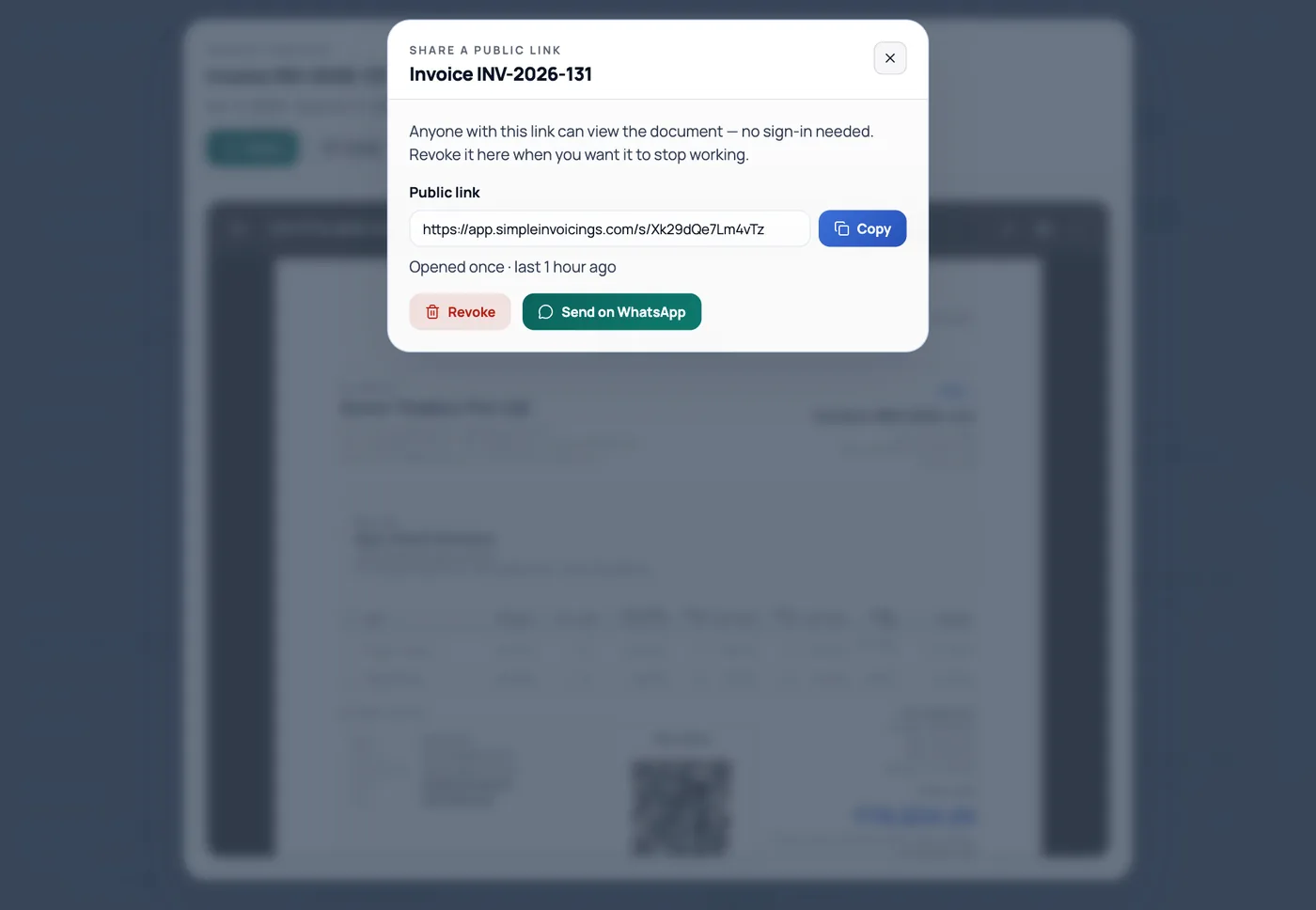
Click Copy, or Send on WhatsApp to open a chat with the customer's number and a message ready to go.
Anyone with the link can view the document without signing in, so only send it to the right person. The dialog shows how many times it has been opened.
- Each document has one live link.
- Links have no expiry date. They stop when you Revoke them or when the document is cancelled.
- Revoking cannot be undone. Create a new link gives a different address.
You can also share receipts, credit notes, quotations and statements.
What your customer sees
A simple page with your company name, the total and a Download PDF button. If Pay by UPI is set up, it also shows how to pay.
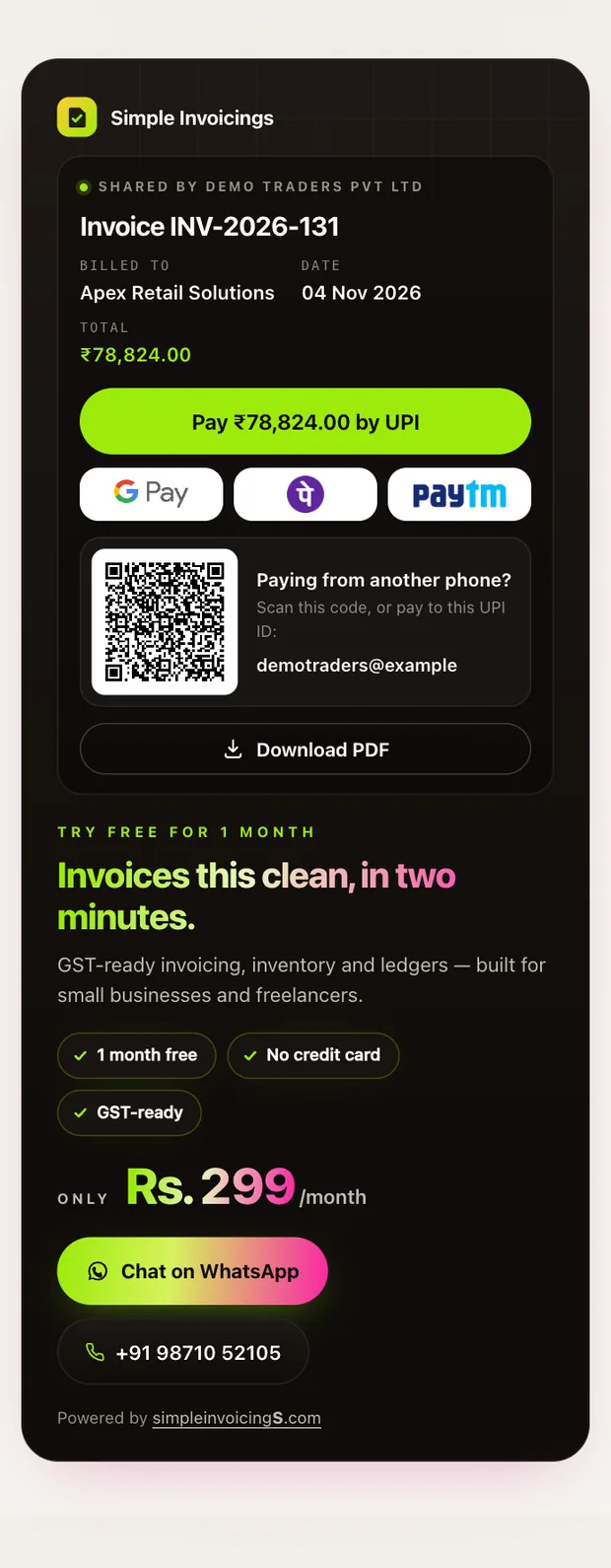
Below the document, the page shows a short Simple Invoicings promotion. You cannot change or remove it from your account. Invoice and reminder emails carry a similar block at the foot. The PDF itself has no promotion.
A revoked or cancelled document shows "This document is no longer available".
Email an invoice
Only admins and managers can send email. On a self-hosted copy, it needs mail settings first.
- Click Email.
- Check To, which comes from the ledger. To and CC take one address each.
- Edit the Subject and add a Message if you like.
- Click Send Email. The PDF is attached.
When the send succeeds, the dialog just closes. To confirm, check Email History.
On the hosted version, emails come from "Your company via Simple Invoicings", replies go to your company email, and each company can send 50 emails in any 24 hours.
Pay by UPI
Your customer can pay the outstanding balance from any UPI app, and the amount updates each time they open the link.
To set it up:
- In Cash & Bank Accounts, add a UPI ID to a bank account and tick Display on invoice PDF.
- Optional: in Company settings, tick Show pay-online QR on invoice PDFs to print a QR code on the PDF.
- Optional: tick Show "Pay by UPI" button on shared invoices for tap-to-pay with Google Pay, PhonePe and Paytm. Only do this with a merchant UPI ID, because personal IDs can trigger warnings in those apps.
Limits:
- Only for live sales invoices with a balance, and statements with a positive balance. Rupees only.
- Up to ₹1,00,000. Above that, customers see your bank details instead.
- The first displayed account with a UPI ID is used, and your customer sees the name registered on it at your bank.
- Revoking the link also stops the QR on PDFs already printed.
Payments are not recorded automatically
The app cannot see UPI payments. When the money arrives, record a receipt so the invoice is marked as paid.
E-way bills
The app builds a JSON file, which you upload to the government e-way bill portal yourself. It does not connect to the portal. Turn this on in Company settings.
- In the invoice preview, click E-Way Bill. The app checks the invoice first.
- Fix anything under Issues to fix, such as a missing HSN or an invoice number longer than 16 characters.
- Check Seller Details and Buyer Details, which are filled in from the invoice. The 6-digit PIN code usually needs checking.
- Under Supply Details, choose the Transaction Type, such as Regular or Bill To - Ship To.
- Under Transport Details, enter the mode and vehicle number, or the Transporter GSTIN. If you leave Distance (KM) blank, the portal works it out from the PIN codes.
- Click Generate JSON. The file
EWB_<invoice number>.jsondownloads. - Upload it on the e-way bill portal using its bulk or JSON upload option.
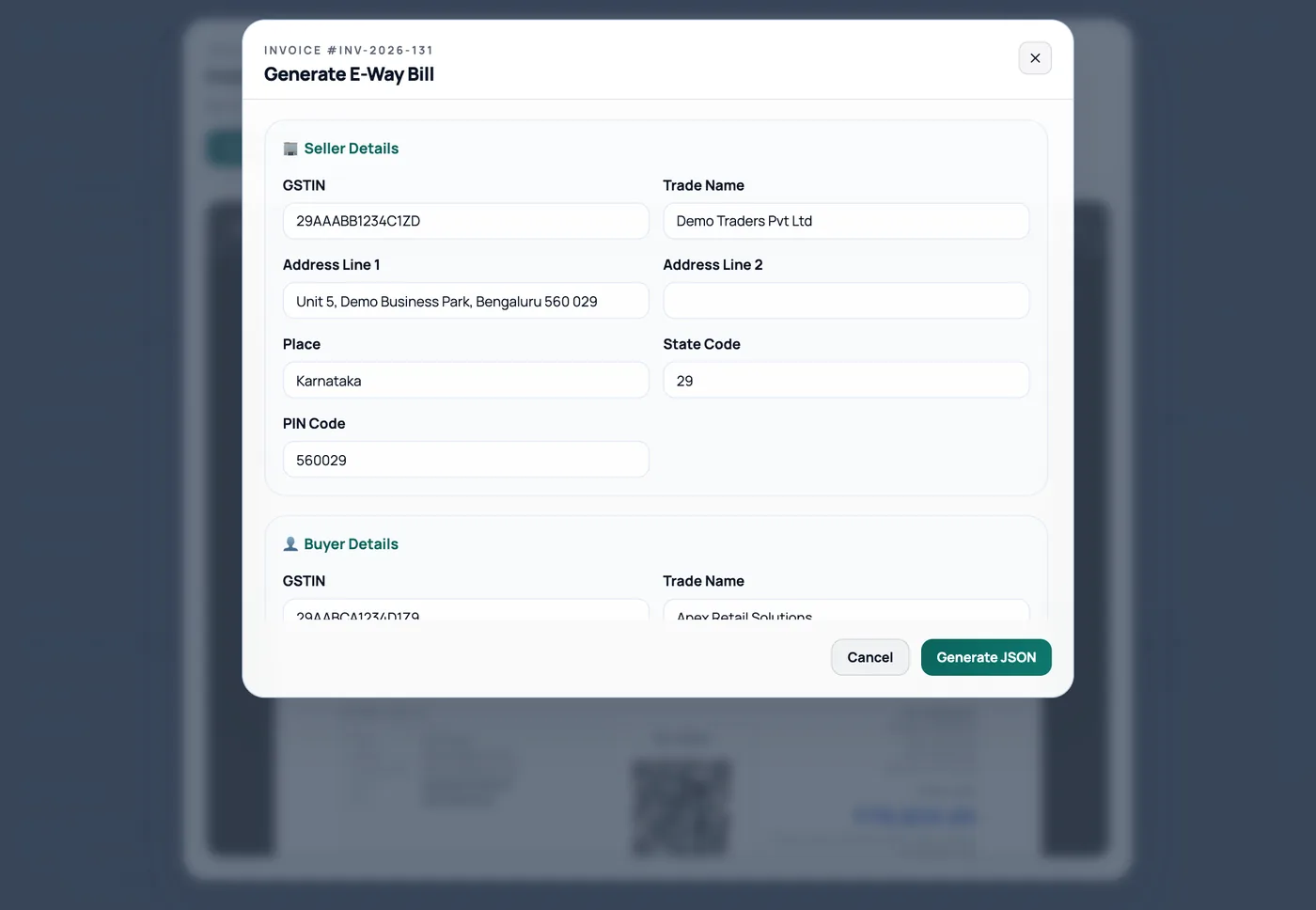
A Threshold Notice means the invoice is below your configured limit. It is a reminder only, and you can still generate the file. An e-way bill needs at least one item of goods, so a services-only invoice is refused.
Tick Save as default transporter to save a transporter you use often.